Covered in this Article:
Home Screen
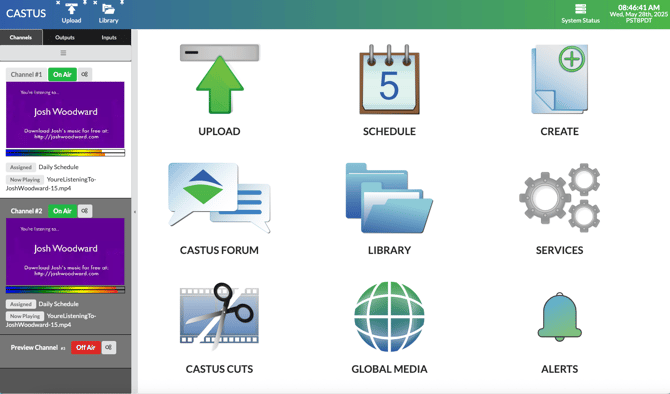
Upon logging into the CASTUS unit, the home screen greets you with various shortcuts such as Upload, Schedule, Library, Services, CASTUS Cuts, and Global Media. Additionally, these buttons are also available on the home screen:
Create - Choose Create to quickly create a number of items such as a CASTUS Cuts Project, Simple Playlist, Schedule, Scrolling Text Item, RSS feed, Metadata Template, or a Report.
CASTUS Forum - A quick link to the CASTUS Forum where you can find help topics and documentation for your CASTUS products.
Alerts - Feature coming soon!
Confidence Monitors
The confidence monitors allow you to visually verify that your channels have both audio and video and are displaying the correct content. These monitors display video at a rate of 3 frames per second.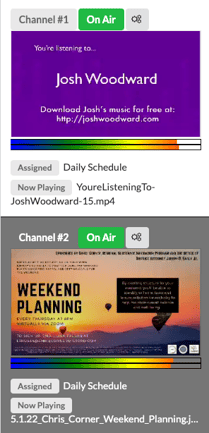
To assign an item to a channel or to choose which channel you're editing for Background Music or Global Media, select the picture of the confidence monitor. The active confidence monitor will be surrounded in white.
Underneath each channel's monitor, you'll find an assigned item and a currently playing item. These show what is permanently assigned to your channel, if applicable, and what is actively playing. You can click on either item to open it within CASTUS.
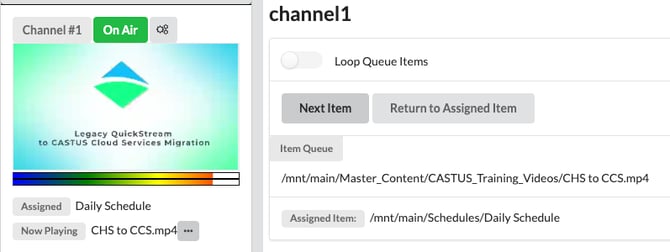
If you notice an ellipsis, or three dots, beside the currently playing item, it indicates that the item is superseding your assigned item by either by going live manually or through the play item now function. Click on the ellipsis to access the item cue and choose to proceed to the Next Item, Loop Queue Items, or Return to Assigned Item.
CASTUS Menu
The CASTUS Menu is located in the upper left corner by selecting the word CASTUS. This dropdown offers a variety of actions and creations available within CASTUS. Your list may vary from what is shown if you have limited user permissions.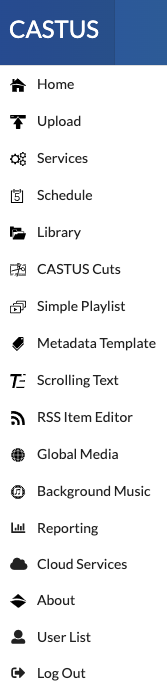
Home - This item will bring you back to the home screen you see upon login.
Upload - Upload media content to your Library. Learn More.
Services - Edit the settings of your channels, inputs, or outputs as well as utilize the controls on your inputs to go live and record. Learn More.
Schedule - View the current schedule assigned to your highlighted channel or create a new one. Learn More.
Library - Browse your files and edit metadata. Learn More.
CASTUS Cuts - Create multi-layered projects that do not require any rendering to play on your CASTUS unit. Learn More.
Simple Playlist - Create a straightforward playlist of diverse media and play it in a set sequence or randomly. Ideal for a schedule default. Learn More.
Metadata Template - Create new metadata templates for your shows and use them to apply metadata to new uploads. Learn More.
Scrolling Text - Create a scrolling bar or static text for use in a CASTUS Cuts project, as an overlay, or a global media item.
RSS Item Editor - Pull in a text RSS feed to display a scrolling ticker of information.
Global Media - Easily manage channel-specific graphics for your channel. Great for 24/7 channel bug, scrolling text, and more. Learn More.
Background Music - Set default background music for any time an item plays that does not have audio. This is a great use in conjunction with a simple playlist so in between programs has an exciting rotation of visuals and audio. Learn More.
Reporting - Create .csv reports of your runlog, inventory, and channel. Learn More.
Cloud Services - Log in to your CASTUS Cloud Services to connect your cloud account. This applies for Video On Demand, Live Streaming, Live Captions, and Translations.
About - The About page shows which software version you're running as well as other information about your system.
User List - Set specific permissions for individual users to keep your content and channel running smoothly. Learn More.
Log Out - Log out of the CASTUS User Interface (UI).
Trend Bar
The Trend Bar, located at the top of the browser in blue and green, features the Upload and Library buttons pinned by default. You can pin more services by opening them and clicking the safety pin in the button's top right corner, allowing quick access to frequently visited pages during your CASTUS session. To remove an item from your Trend Bar, click the X in the top left.

System Status
To the far right on the trend bar is the System Status button. This reveals a slew of important information including how long your system has been running, the temperature of your CPU, the disk space, and raid status (if applicable).
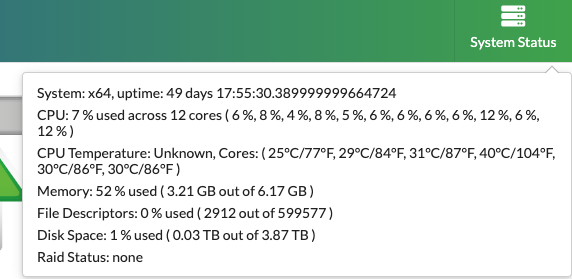
System & Uptime - This section provides information about your system type and its operational duration. CASTUS advises a quarterly server restart as a preventive maintenance measure.
CPU - This section provides information on both the average and individual core usage of your system. A usage below 35% when idle is standard, and it will rise when handling live inputs and extra outputs. Usage under 60% is considered normal, but levels at 60% or higher could lead to broadcasting problems.
Memory - This section shows the current memory usage of your system. Consistently high usage accompanied by crashes may suggest rare memory-related issues.
File Descriptors - File descriptors track open files and connections. High usage can cause system issues, so it's important to monitor them in the System Status panel and perform regular maintenance, including restarting the server, to prevent problems.
Disk Space - Monitor your disk space by checking the percentage regularly. CASTUS recommends staying below 75% used to allow optimal performance. You may experience broadcast issues and crashing if your drive is too full. Remember to regularly empty your trash! Learn More.
RAID Status - The status of your RAID backup, if available, will be displayed here. Should the RAID be degraded or in the process of rebuilding, this will be indicated along with any progress details. If no RAID is present, it will display "none".
Time & Date
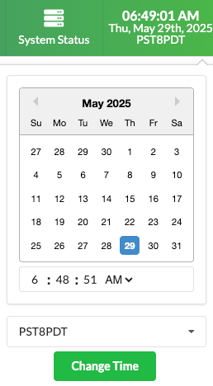
By clicking on the time and date located in the top right corner, you can access a menu to adjust the timezone. Although the timezone is typically configured during production, this is the place to make changes if necessary.