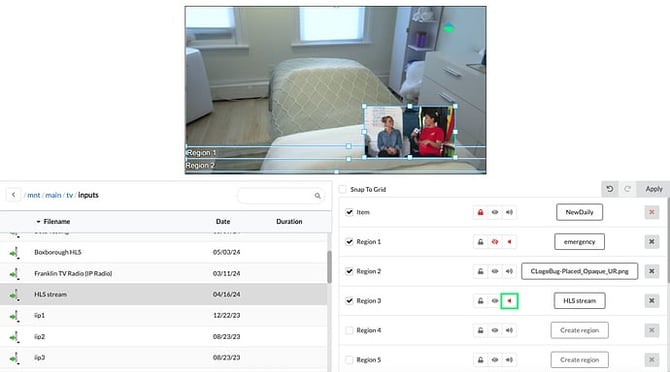
Global Media is a powerful overlay system that displays content over all of your channel's programming. It acts as the final visual layer before output and remains active until manually changed. Global Media is ideal for branding, alerts, information tickers, and more.
Supported Media Types
Global Media supports a wide range of content types:
-
Scrolling or static text
-
PNGs with transparency
-
JPEGs
-
Videos
-
Live streams
- CASTUS Cuts Projects
- Simple Playlists
Using Global Media
Selecting Your Channel
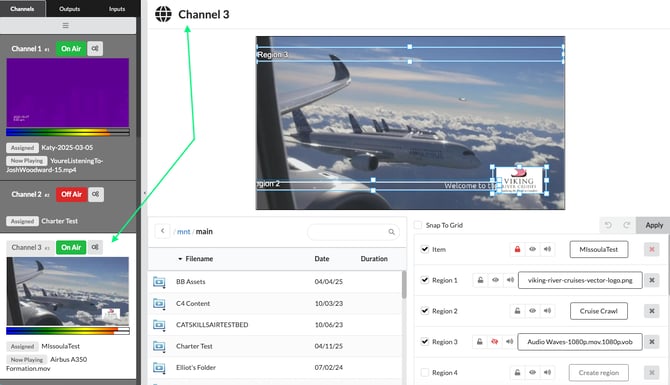
If you're managing a multi-channel system, choose the confidence monitor for the desired channel. This opens that channel’s Global Media configuration page.
Understanding "Item"
The Item is the foundational layer of Global Media for your channel. It is usually locked by default (indicated by a lock icon). While it can be changed (e.g., switching to an L-Bar layout), we recommend leaving it intact and using regions for overlay customization.
If you find your channel in the black, checking to see if the item has been turned off by accident is a recommended troubleshooting step.
Assigning a Region
To display custom content:
-
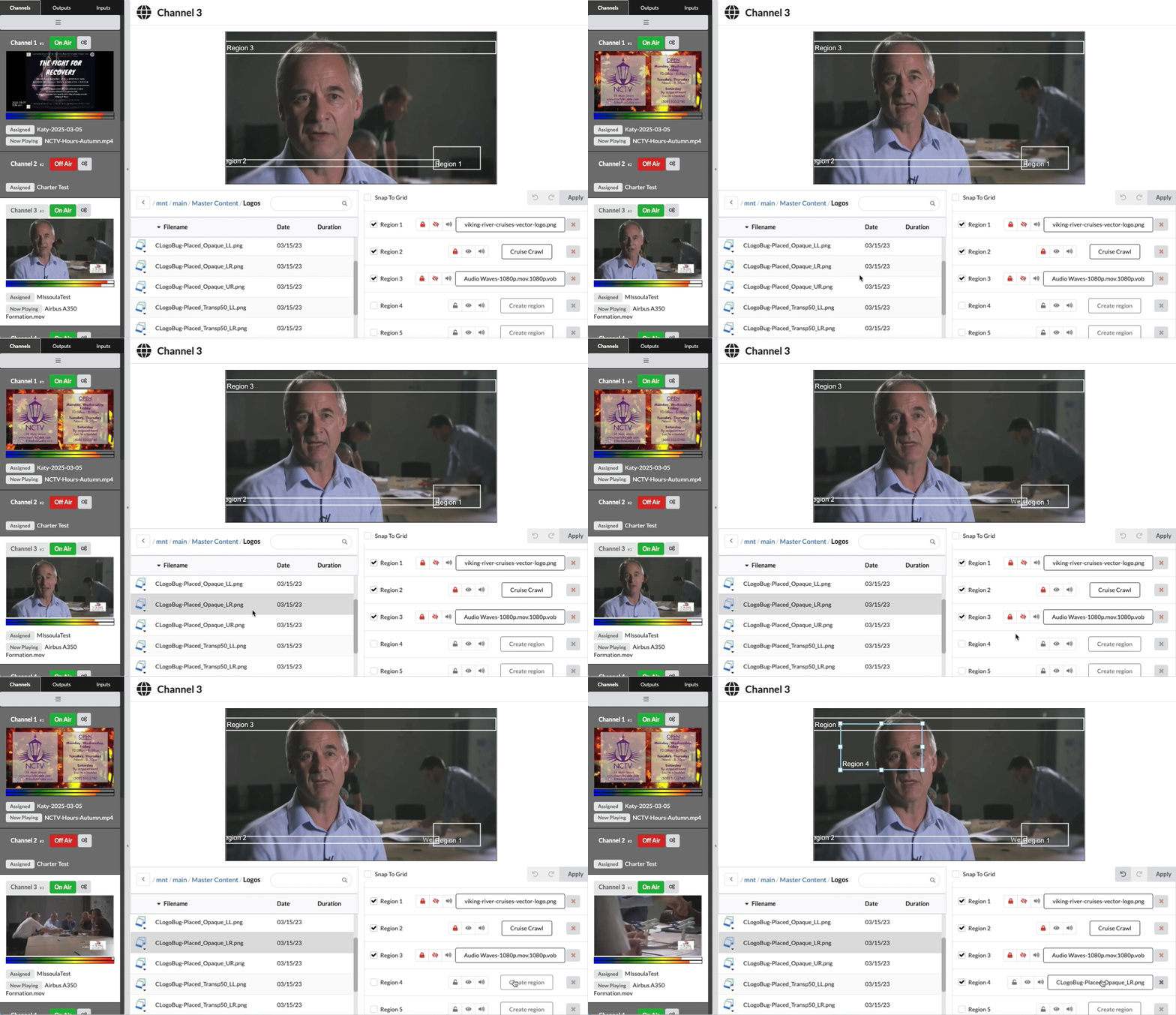
Create or upload your content.
-
Locate it in the left-hand content panel.
-
Single-click the item.
-
Click Create region to assign it to your layout.
Adjusting Size & Placement
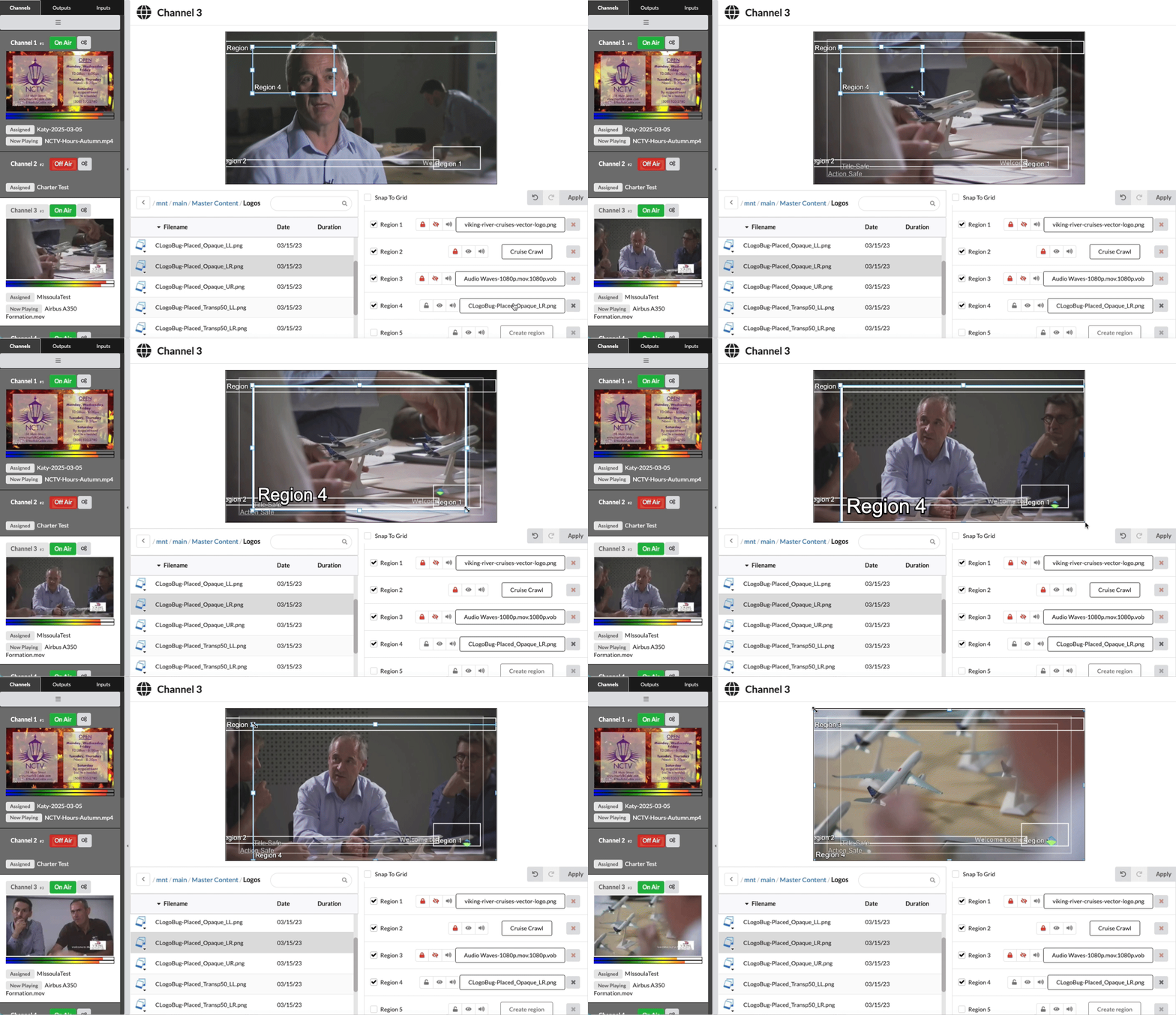
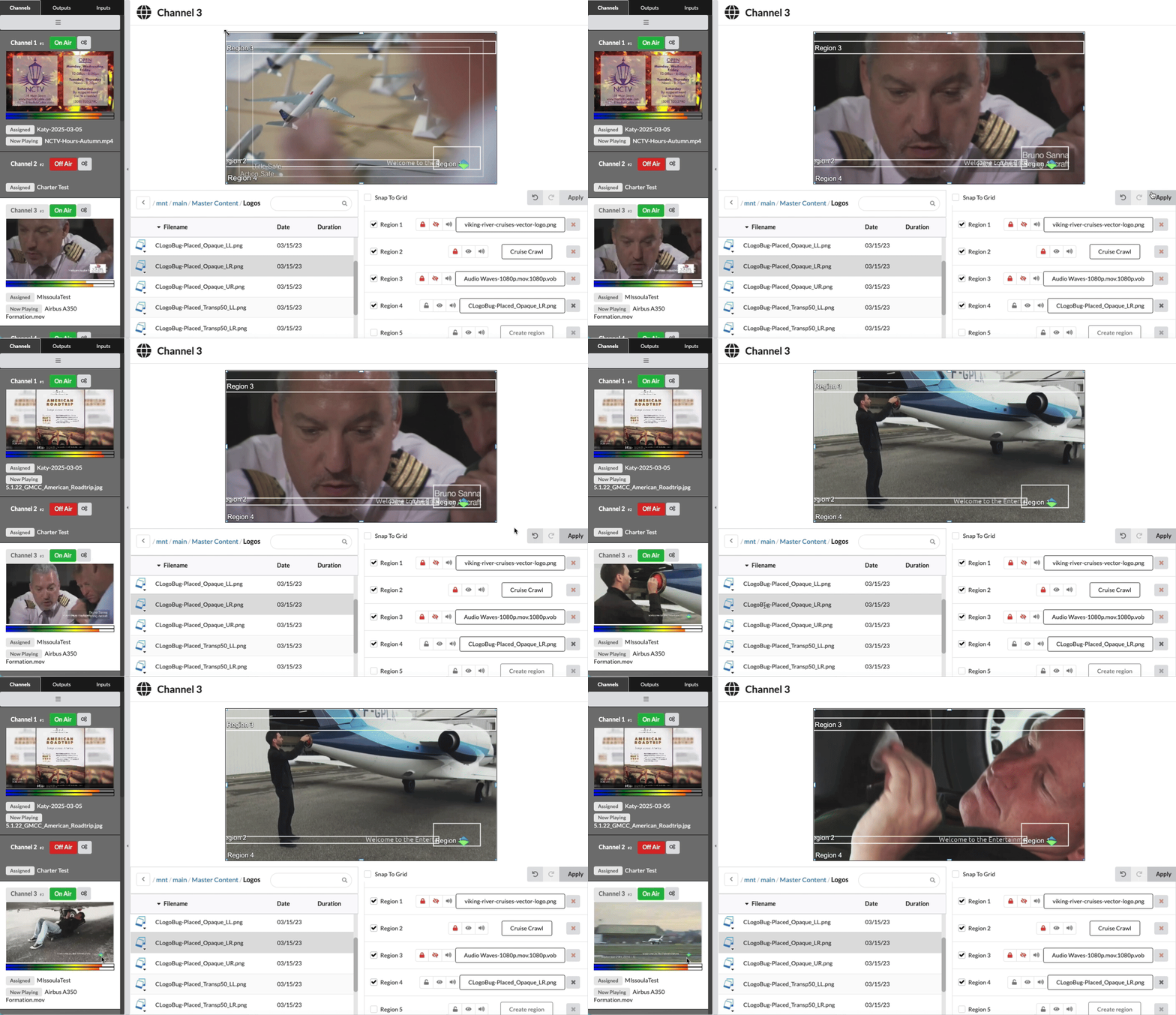
Once a region is created, a bounding box appears on the preview screen. Resize using the corners, and reposition by clicking and dragging the region to your desired location.
Applying Global Media
Your edits won’t appear live on your channel until you click Apply on the right-hand side. This publishes your changes to the live channel output.
Removing Global Media
You have several options to remove a global media item from your channel:
-
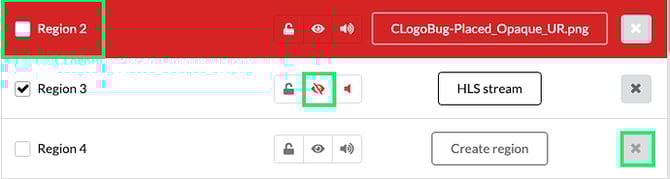
Uncheck the region title to disable it (remains in preview, removed from live).
-
Click the eye icon to hide it from both preview and live.
-
Click the X icon to remove the content from the region entirely.
Locking Regions
Use the lock icon to prevent accidental changes or movement to a region.
Muting Audio
If your Global Media contains audio (e.g., live stream or picture-in-picture), use the sound icon to mute it. This ensures only your main channel audio is heard.