
Background music is a great tool to use when the content on your channel does not have any audio, such as bulletin board announcements or title screens ahead of a live program. Background music is easy to set up and automate on your CASTUS QuickRoll or QuickCast unit. You are responsible for making sure you have the rights or permission to use an audio source for broadcast.
SET UP AUDIO SOURCE
Folder of Audio Files
- Select the CASTUS menu in the top left and and choose Library from the dropdown.
- Navigate to where you want to store your audio folder by double clicking folders in the library.
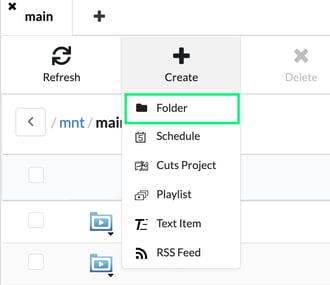
- Select Create and choose Folder. Name your folder and select Submit.
- Select Upload from the trend bar at the top of the screen to upload audio files directly into this new folder.

- Select Choose File to find the file on your computer, select it and choose Open.
- Select Upload to begin the upload.
NOTE: In this upload screen, you can upload one file at a time, but you don’t have to wait for the file to finish uploading to add an additional upload. If you want to add files in bulk, consider using an FTP application such as Filezilla.
IP Radio Station
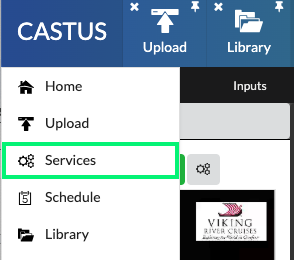
- Select the CASTUS menu in the top left and choose Services from the dropdown.
- Select Inputs.
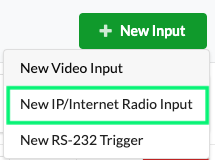
- Select New Input and choose New IP/Internet Radio Input.
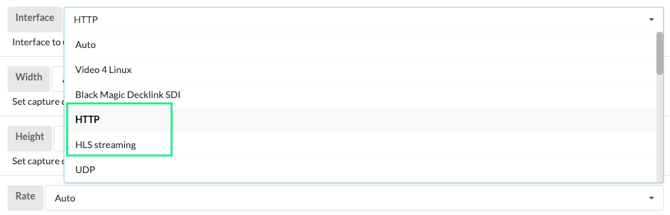
- Scroll down to the Interface parameter and choose HTTP or HLS Streaming from the dropdown, depending on your source.
- Navigate outside of the CASTUS interface in a different tab or window and copy the source URL of your IP Radio signal.
- Scroll down to the URL parameter and paste your internet radio source link.

- Select Apply at the top to save your changes.
NOTE: The link you need for IP radio is the source link, not the player link. You may need to contact the radio station to obtain this information.
TURN ON AND ASSIGN
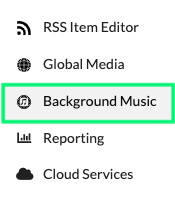
- Select the CASTUS menu in the top left and and choose Background Music from the dropdown.
- At the top of the screen, enable the feature by selecting the radio button.
- Select the dropdown next to Default Policy and choose If No Audio.
- In the library below, navigate to your audio source and select it by clicking on it once.
- Folder - Select the name of the folder (do not double click to open it)
- IP Radio/Input - Navigate to main > tv > inputs and select the name of your input by clicking once.
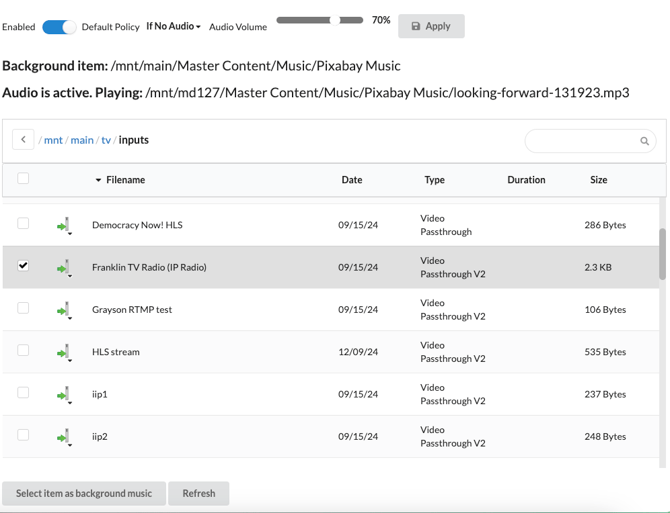
- At the bottom of the screen, choose Select item as background music.
- Choose Apply at the top of the screen to save your changes and apply the setting.
