Creating Metadata Templates
- Navigate to CASTUS > Metadata Template. A new template will populate.
- Click the + icon to add fields.
- Fields can be filled out or left blank.
- Select the save icon and name your new template.
Locating Metadata Templates
- Navigate to Metadata Templates in the main directory of your Library.
- To delete a template, select the checkbox to the left of the template and choose Delete at the top of the screen.
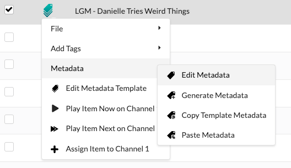
- To modify a template, select the dropdown of the template and choose Edit Metadata. Make your changes and save your template.
NOTE: Modifying or removing a template will not impact any videos that have already utilized that template.
Applying Metadata Templates
Metadata templates can be applied in two ways: during the upload process or within the edit metadata window for a file already stored in your library.
While Uploading
- Navigate to CASTU > Upload.
- Choose your file to upload.
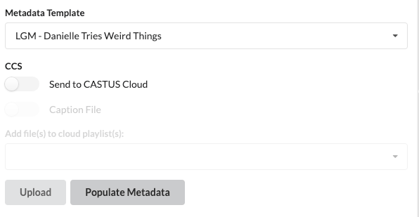
- Select the Metadata Template dropdown and choose a template.
- Select Populate Metadata.
- Complete the metadata for your specific upload. Any information you enter or additional fields you add will not alter your original template.
Edit Metadata in Library
- Locate your file in the library and choose the dropdown to the left of the file name.
- Choose Edit Metadata.
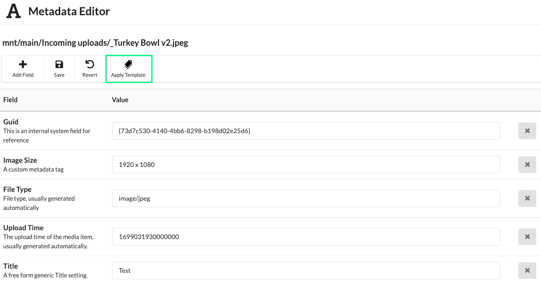
- At the top, choose Apply Template and choose a template to apply.
- Fill in the fields that are now applied to your template and save.