
In CASTUS, you can create an unlimited number of static or crawling text items. These can be scheduled, added to CASTUS Cuts projects, or added to any Global Media item. The built-in text editor gives you full control over scroll speed, text and background color, justification, drop shadow, opacity, and more.
Common Uses
There are a variety of common uses for text items including an emergency scroll, a live or replay indicator for live events, station information, date and time, as well as Coming Up Next data.
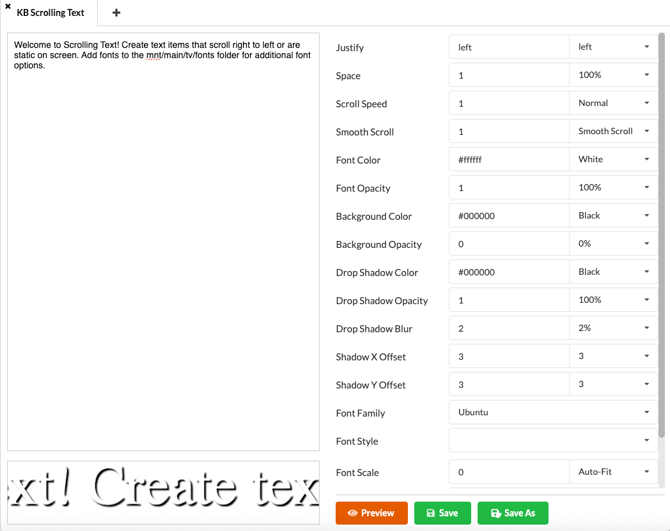
Creating a Text Item
- Head to CASTUS > Scrolling Text.
- Enter the text you want to include in the white box on the left.
- Use the parameters on the right to adjust your text (see customization options below).
- Save your text item. Text items default to save in the Text Items folder of your library.
Customization Options
Justify: Clarify if text should be justified left, center, or right.
Space: Determine how much lead space there is at the beginning of a scrolling item.
Scroll Speed: Choose the speed at which to scroll, including Static, Not Moving for static text.
Smooth Scroll: This refers to the animation quality of scrolling text—it ensures the text moves fluidly across the screen rather than in choppy or staggered steps. When enabled, it creates a more polished, continuous motion, which is ideal for ticker-style messages or emergency crawls where readability and visual quality are important.
Font Color: Change the color of the font by using a pre-determined font color from the dropdown list, or your own hex code for better branding.
Font Opacity: Change the opacity of the text. Setting it to 100% opacity will allow the text to be solid and a lower opacity will allow the text to be varying levels of see-through.
Background Color: A background color can be applied to static or scrolling text and will incorporate the length of the text with a background color.
Background Opacity: Control whether the background is solid or see-through.
Drop Shadow: Control the color, opacity, blur, X offset, and Y offset of the drop shadow.
Font Family and Style: Choose the font and style to use. Add new fonts by placing .ttf or .rtf files in the font directory at mnt/main/tv/fonts.
Font Scale: The scale your test should display at.
Multi Line: Control how many lines are shown in your item. The item is set to auto detect how many lines.
Emoji Set: Choose whether you want full color emojis or monochrome.
NOTE: Monochrome emojis do not display as monochrome in the preview but do display as monochrome when applied to the channel.
Text Syntax
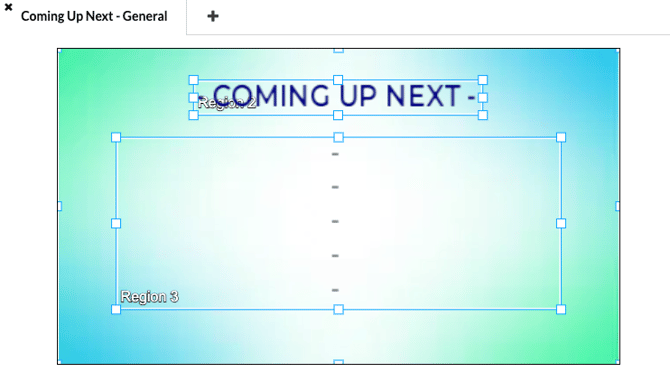
CASTUS enables you to dynamically display scheduling-related data on screen using a text item. This feature is ideal for Coming Up Next graphics, enhancing your bulletin board, or adding a live overlay of the current date and time through Global Media. To get started, simply create a text item as previously described and insert the appropriate syntax for the information you wish to present.
Coming Up Next
| Syntax | Example |
|
%{time;next;1;12h,ampm}% - %{title;next;1}% %{time;next;2;12h,ampm}% - %{title;next;2}% %{time;next;3;12h,ampm}% - %{title;next;3}% %{time;next;4;12h,ampm}% - %{title;next;4}% %{time;next;5;12h,ampm}% - %{title;next;5}% %{time;next;6;12h,ampm}% - %{title;next;6}% |
10:00 am - A Walk in the Garden Ep. 125 11:00 am - McGold-RIFFS w/ Mike Valeras 12:30 pm - Fire Station Open House 1:00 pm - Therapy Chat Ep. 24 2:00 pm - Yoga with Ginny Ep. 121 3:30pm - The Story Place Ep. 21 |
To exclude an item from the Coming Up Next slide, apply the metadata field Schedule Announce and set it to Never. This is useful for bulletin slides, short PSAs, as well as the Coming Up Next slide itself.

NOTE: At this time, blocks do not show in the Coming Up Next bulletin on the server but do show on the online CCS schedule.
Additional Helpful Syntax
|
Use |
Syntax |
Example |
|
Current Date |
%{date}% |
01/09/2025 |
|
Date with Formatting |
%{date;now;;mm/dd/yy}% |
01/09/25 |
|
Current Episode |
%{episode}% |
A Walk in the Garden |
|
Next Episode |
%{episode;next}% |
Ep. 151 |
|
Next Title |
%{title;next}% |
Bill McGold-RIFFS |
NOTE: Titles and episodes are populated by the metadata applied to your scheduled items for title and episode, respectively.
NOTE: When using these tags in CASTUS Cuts, you will not see the data populating (and will only see characters outside the %{ }% format). These items will pull data from the schedule in which it resides upon playback.
Adding Fonts to the Server
Elevate your text by adding custom fonts to your server.
- Download your font to your local computer.
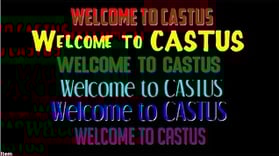
- Upload the font file (.ttf or .otf) to the fonts folder located at mnt/main/tv/fonts in your library.
- When in the scrolling text editor, choose your font from the Font Family dropdown.
NOTE: You will not see the font when using the "preview" function inside of the text editor, but it will appear on-screen when applied to your channel.