
Gather Your Media
Start with an uploaded graphic or create a Scrolling Text Item with your information. If your graphic is sized and placed where you want it to go, you can skip right to the Schedule Your Overlay step.
Size and Place your Item
Option 1 - Size and Place in Global Media
If you're always using the same item like a logo or you're always using a crawl that you want in the same place, you can size and place inside of Global Media. If you're using mixed media types, you'll want to use Option 2 below.
Option 2 - Size and Place in CASTUS Cuts
- Open up a CASTUS Cuts project and add your media item to the Cuts project.
- Size and place accordingly.
- Set the duration for the length you want your item to appear at a time.
Schedule Your Overlay
- Create a daily schedule by navigating to CASTUS > Schedule and choosing the + icon to the right of your current schedule’s name.
- Make sure Daily Schedule is selected from the dropdown and choose Create. This works with other schedule types as well if you want more control over date and time.
- Schedule the overlay—whether it’s your original placed and sized file or your CASTUS Cuts project—for the desired airtime.
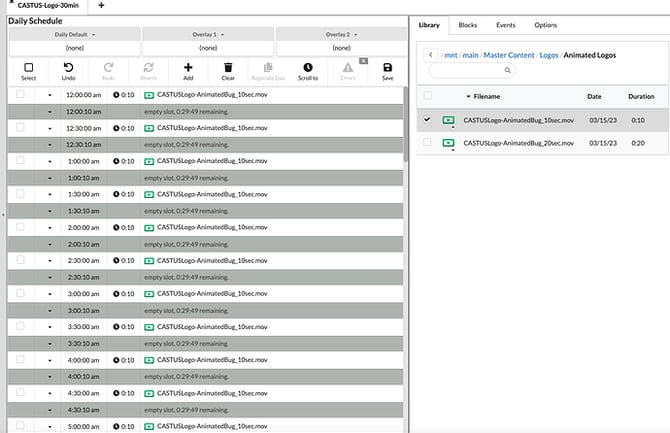
- Save your schedule in the Schedules folder.
Set Schedule as Global Media Item
- Head to CASTUS > Global Media and select the confidence monitor for the channel you want to apply to.
- In the library widget on the left, find your schedule file and click once to select it.
- On the right, select anywhere that says Create region to create a new Global Media region.
- In the viewer above, set the bounding box for the full screen if using a CASTUS Cuts project, or size and place if using the full graphic.
- Select Apply to apply your changes.
Are you looking for...