Unexpected content showing on your channel? Use these quick checks to troubleshoot and resolve the issue:
Check the Assigned Item
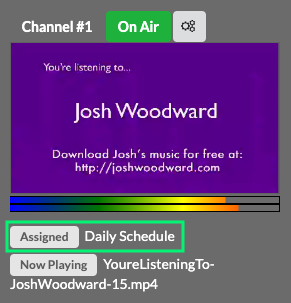
Look beneath your channel’s confidence monitor—does the assigned item match what you expected? If not, click the confidence monitor to highlight the channel, go to your Library, locate the correct item, open its dropdown, and select Assign Item to Channel X.
Check What’s Now Playing
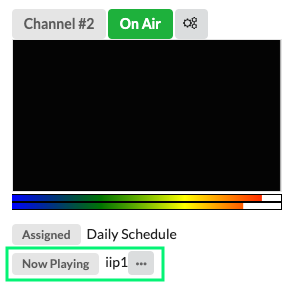
If the item currently playing isn’t what you expected, check for an ellipsis (…) next to it. This means something is playing via Play Now or Input Controls. Click the ellipsis and choose Return to Assigned Item to revert back.
Check for Overlays
In your assigned schedule, review Overlay 1 and Overlay 2 for any mistakenly placed content. Overlays are intended for graphics or crawls but can include full video/audio. Remove the video item from the overlay slots and re-save the schedule to clear it.

Check Global Media
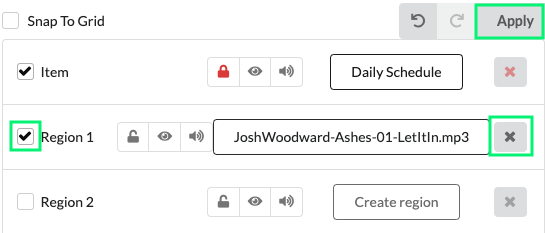
If there is text, a logo, or audio that is still coming through, check your Global Media for active regions. Turn off a region by unchecking the region or using the X to the right. Apply the changes to take effect.