
Creating Chapters
- Navigate to cloud.castus.tv/admin and log in to your CASTUS Cloud account.
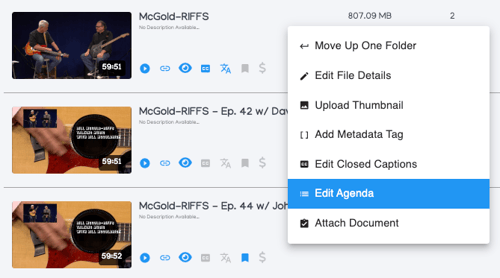
- Select a video by choosing Library and clicking on the edit button next to a video or right clicking and choosing Edit Agenda.
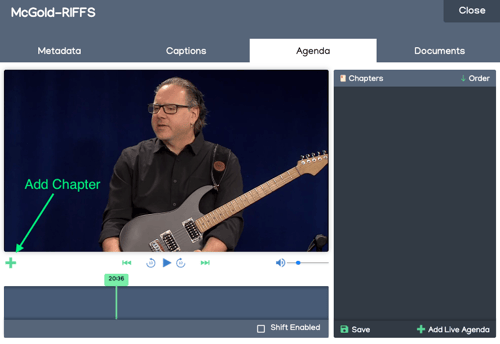
- To review your video, click the play button to watch it with audio, or click and drag along the timeline to navigate through different sections. When you reach the desired moment, click the plus icon on the left side toadd a new chapter point.
- Modify the title and description of your chapter as needed, and click on the New Hyperlink + button to incorporate a hyperlink into your chapter entry.
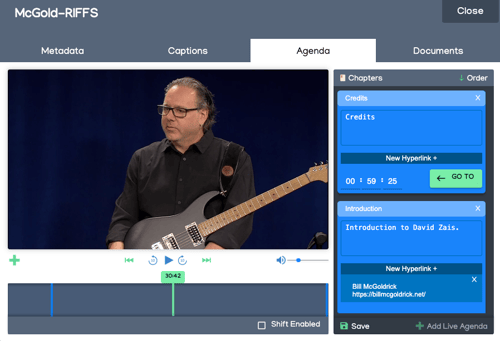
- Choose save on the bottom of the index list to save your changes.
Shift Enabled
When Shift Enabled is activated, any timestamp adjustments made to one chapter will automatically apply to all other chapters. For example, if you increase the timestamp of one chapter by 3 seconds, every other chapter will also advance by the same 3 seconds.
- To engage Shift Enabled, use the checkbox below the timeline.
- Make an adjustment to a chapter marker's timecode on the right hand side.
- Be sure to disable Shift Enabled after making your adjustments to avoid unintentionally altering the time codes of any future chapter markers.
Viewing Chapters on a Video
- Navigate to the front-end of your cloud portal, or in the Library view, choose the Watch Now button to open the video in another tab or window.
- The chapter markers you recently added and saved will appear to the right of the video.
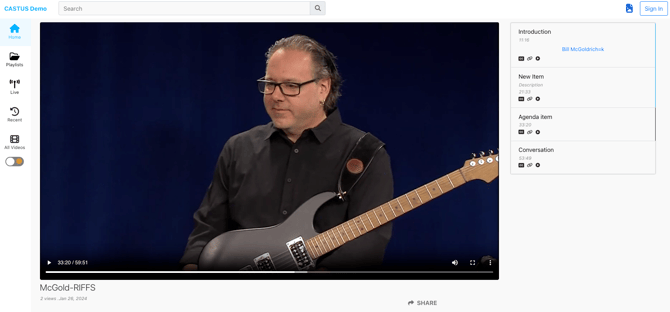
- Select a chapter marker to instantly navigate to that specific moment in the video.
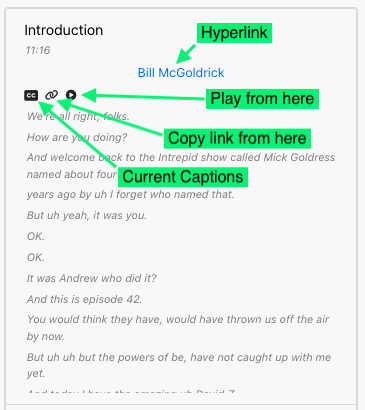
- If the video has captions available, click the CC button on the chapter marker to view the corresponding text.
- Select the link button to generate and copy a direct link to that specific moment in the video.
- Press the play button to start the video from that specific chapter point.
- Select the blue hyperlink to navigate to the associated website.