
If you accidentally factory reset your VIVA device, you can quickly get it back up and running by updating the firmware package.
Access the VIVA Via IP Address
To update the firmware, you need to access the VIVA web interface via the IP address. For more information on finding and accessing the IP address, please visit Finding the IP Address of the VIVA.
Once you've accessed the IP address, the login info will have changed with the factory reset. Use admin as the username and osprey as the password.
Download the Firmware Update File
Download the firmware update file.
Updating the Firmware
- In the main menu of your VIVA UI, go to the bottom left corner and click on the Support tab.
- Select Firmware Update.
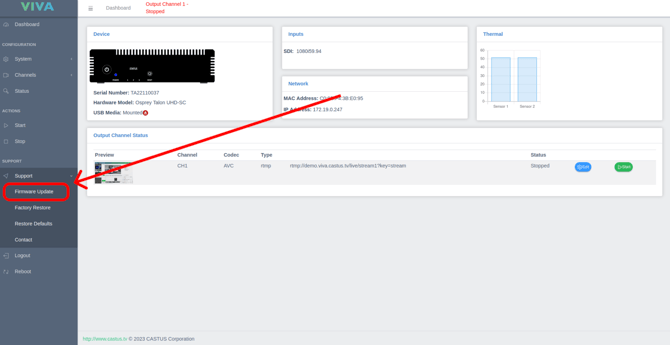
- You'll be redirected to the firmware update page. Click to navigate to your update file, or click and drag the file into the window.
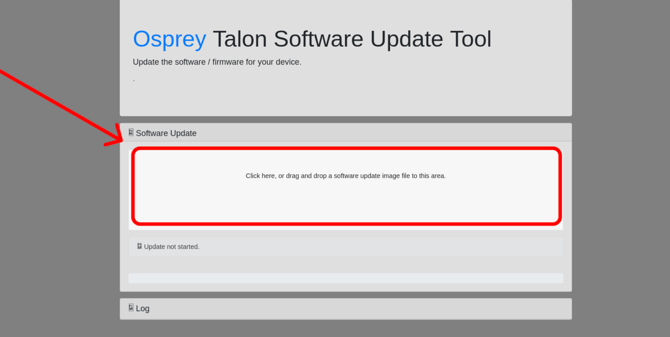
- After the update is complete, your VIVA will restart.
Adjusting the Settings
- When open to the dashboard, select the blue Edit button under the Status bar.
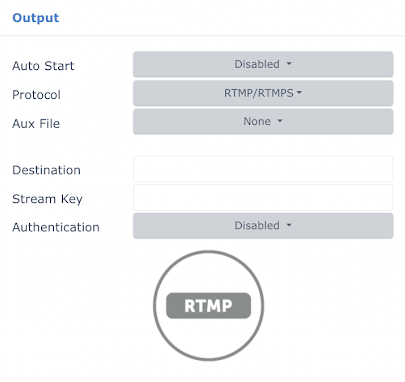
- Review the Output settings on the left:
- Auto Start - Change to Enabled
- Destination - Fill this in with the "Link" from your VIVA card or diagram.
- Stream Key - Fill this in with the "Stream Key" from your VIVA card or diagram.
- Review the Video settings in the middle:
- Target Bitrate - Change bitrate to 4000 for 1080p.