
The video flag status is an advanced feature that identifies a specified change in signal from an input and seamlessly reverts to your scheduled program or weekly default when triggered, such as when a signal is lost at the conclusion of a live broadcast. This functionality is applicable to live input, recording, and live event captioning. This feature is part of the 5.5.0 software update (11-17-2022).
SET UP VIDEO FLAG STATUS
- Select the CASTUS Menu in the top left and choose Services.
- Select Inputs, and choose Settings next to the input you want to change.
- Select Advanced Settings and search for video flag status.
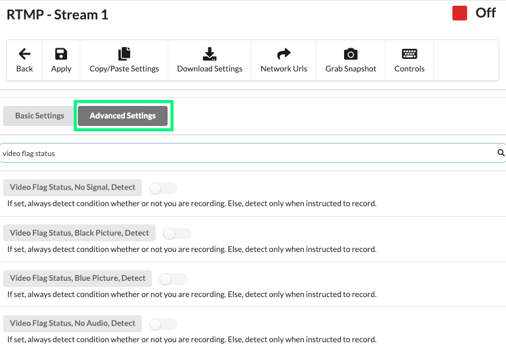
- Choose the video flag status, detect, that best suits your operational needs (no signal, black picture, blue picture, no audio, or still picture) and turn the radio button on.

- Select Apply at the top of the screen to save your changes.

ADJUSTING PARAMETERS
Time (most common)
- While in the Advanced Settings of your input, search for Time and locate the item that matches the flag status you previously enabled (no signal, black picture, blue picture, no audio, or still picture).
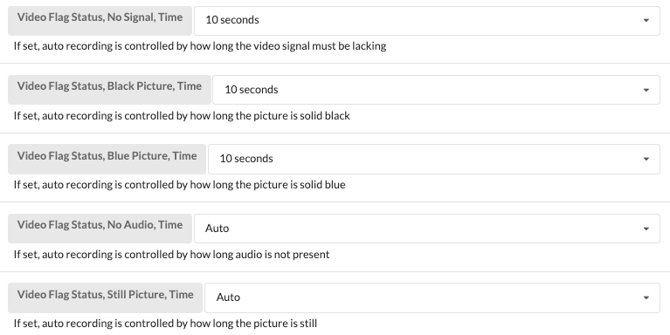
- Select the dropdown and choose the amount of time the signal should remain before switching back to your default.
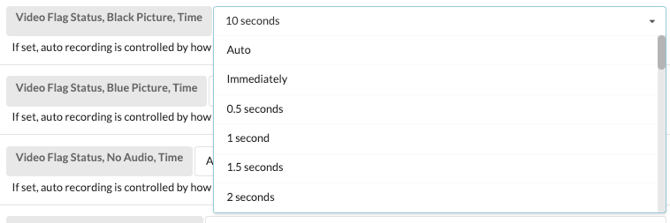
- Select Apply at the top of the screen to save your changes.
Luma Threashhold, Chroma Threashhold & Color
- If your live event does not fit neatly into one of the 5 standard categories, there are also a variety of parameters you can adjust to meet your needs.
- While in the Advanced Settings of your input, search for any of the following parameters to adjust: Luma Threashhold, Chroma Threashhold or Color.
- Select the dropdown next to each one and choose your desired value.
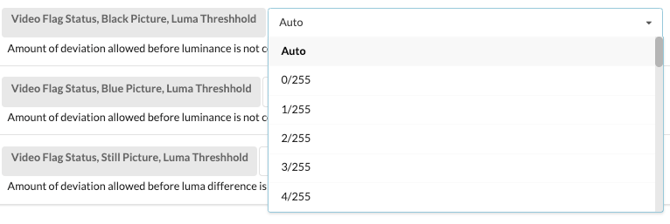
- Select Apply at the top of the screen to save your changes.