
Covered in this Article:
Turning the Preview Channel On and Off
Ways to Utilize the Preview Channel
Playing on and Assigning to the Preview Channel
Going Live on the Preview Channel
Are you looking for...
Each unit has a Preview Channel and if you haven’t been using it, you might wonder what its purpose is. Let’s take a look at a few different uses for your Preview Channel and how to use it!
CASTUS recommends only turning your Preview Channel on when you need it to save on CPU load.
Turning the Preview Channel On and Off
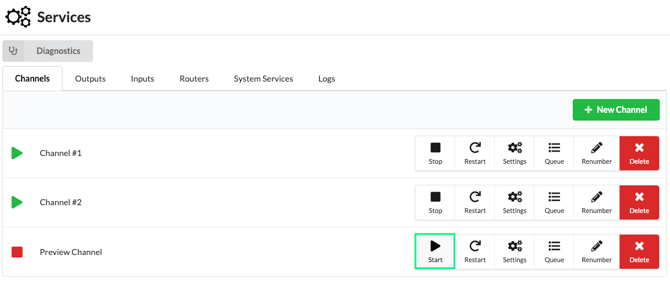
- Head to CASTUS > Services.
- Select Start to the right of your Preview Channel. You’ll see it start via your confidence monitors.
- Likewise, navigate to the same location and choose Stop to turn off your Preview Channel when you’re done.
Ways to Utilize the Preview Channel
Preview Content - This is a great way to preview content to make sure it will play as expected on your channel. This could be a way to test file types, edit points, audio levels, and much more.
Test Live Streams - Have a live event coming up? The Preview Channel is a great way to test your live feed without going live on your channel. Go live on preview to see the video and audio ahead of a live broadcast.
Test Schedules - Whether you’re testing scheduled live events, schedule blocks, or Coming Up Next slides, a test schedule assigned to your Preview Channel is a quick way to get practice scheduling content without going live on your channel.
View Open Captions - Want to make sure your captions are going out with your video without baking them into your live broadcast image? Turn on open captions on your Preview Channel to view them in real time on your preview confidence monitor. To do this, go to CASTUS > Services > Settings for your Preview Channel and type caption into the search box. Change Render Via 608 to CC1 from the dropdown and apply your changes.
Playing on and Assigning to the Preview Channel
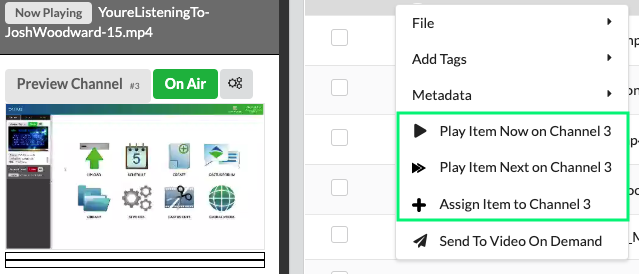
- Select your Preview Channel in the confidence monitor so it's surrounded in white.
- Use the dropdown of a file, folder, CASTUS Cuts Project, or Simple Playlist and choose Play Item Now, Play Item Next, or Assign Item on Channel X.
Going Live on the Preview Channel
The process of going live on your preview channel is the same as going live on your main channel.
- Navigate to CASTUS > Services > Inputs.
- Select the Controls for the input you want to go live with.
- Choose the Play button to the right of the Preview Channel line.
- Likewise, choose Stop to end live on your Preview Channel.