
Getting started with an Audio Description or Extended Audio Description is quick and easy.
- Navigate to app.videoyo.net and sign in.
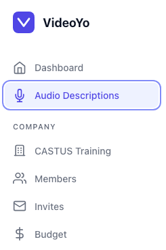
- Select Audio Descriptions from the main menu on the left.
- Select New Job on the right hand side of the screen.
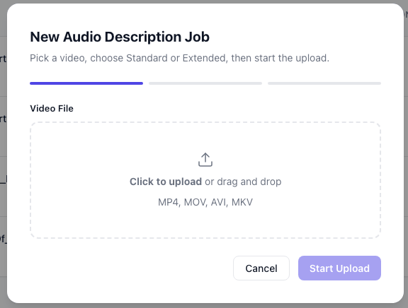
- Click to upload or drag and drop a file into the upload screen to get started.
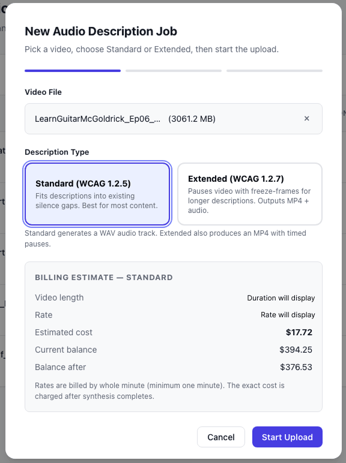
- Choose whether you want Standard Audio Descriptions (AD) or Extended Audio Descriptions (EAD).
- Standard Audio Descriptions insert the audio description into gaps in the video when no one is speaking. Your final AD video will be the same duration as your original upload.
- Extended Audio Descriptions pause the video to insert audio descriptions and then resume the video. Your final EAD video will be longer than your original upload.
- Review the costs associated with processing the video. Selecting Start Upload will charge your account based on the price indicated.
- Stay on the page while the video is uploading. Once uploaded, it will analyze and process in the background, you can navigate away from the page at that time.
- Once processing is complete, you can edit the file or download the file as-is.