
Setting in and out points does not involve any rendering, exporting, or transcoding. Additionally, it is non-destructive, meaning your original file remains intact and unaltered. You can immediately schedule the video with its adjusted duration.
Trimming an MP4
This process is designed specifically for MP4 files and may not function correctly with other file formats. However, other file types will still play out seamlessly on your server.
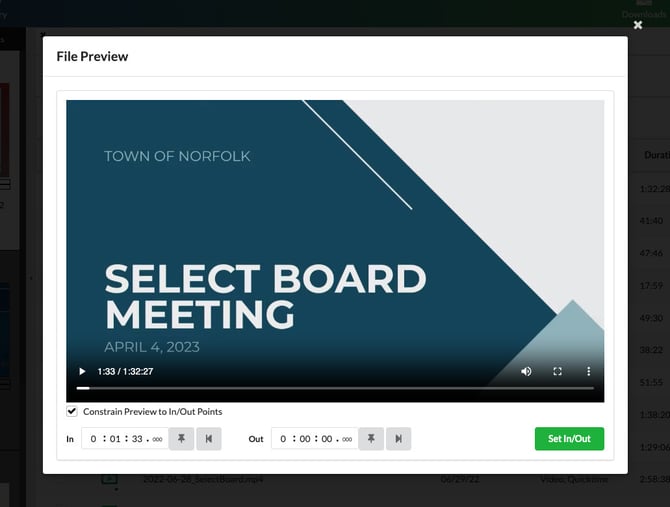
- To access the trimming interface, simply double-click on an MP4 video within the CASTUS Library.
- Play your video or move the playback slider until you find the point where you want the video to start.
- Use the safety pin icon on the bottom left to pin that timecode as your In.
- Use the safety pin icon on the bottom right to mark your Out point.
- Select Set In/Out to set your in and out points.
- This menu can be revisited at a later time to adjust a trim if needed.
Trimming All File Types
All file types can have an in and out point.
- Select the action dropdown for your file and choose Edit Metadata. Older software will have this option in the main menu while newer software has it in a Metadata submenu.
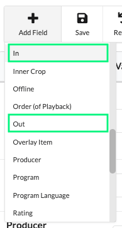
- Select Add Field and choose In. Repeat Add Field and choose Out.
- Manually type in the in and out points for your video.
- Select Save.
- To erase the in and out points, select the X to the right of each parameter and save.
NOTE: If you had previously added the file to your schedule before making the trim adjustments, you will need to remove it and add it again to ensure that the schedule reflects the new trimmed duration as it does not auto-update at this time.