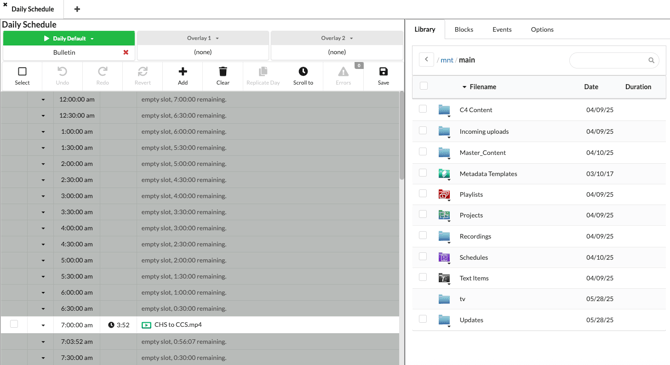
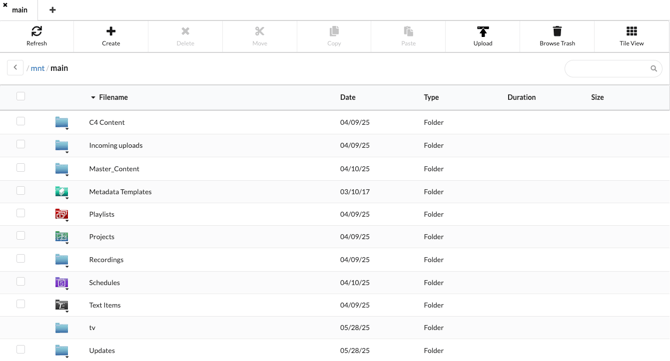
The Library on a CASTUS server serves as the primary hub for file storage. Whether it's videos, CASTUS Cuts projects, or other content, the library is your comprehensive solution for file organization.
Folders
Every system comes with several pre-populated folders.
C4 Content - Includes templates and general content for your use, such as Coming Up Next templates to highlight your upcoming programs on your channel.
Incoming Uploads - This folder serves as the default location for new file uploads.
Metadata Templates - By default, new metadata templates are saved in this folder. Access this folder to modify any existing metadata templates. Your system comes preloaded with two templates: Show Master and Slide Master.
Playlists - The Playlists folder is the default location for storing your Simple Playlists.
Projects - The Projects folder is the designated location for storing your CASTUS Cuts Projects, which are automatically saved here by default.
Recordings - The recordings folder will save all of your CASTUS recordings. Inside the recordings folder, a new folder will be automatically created for each input you've recorded on. Look inside the folder for your input to find manual or scheduled recordings.
Schedules - By default, your schedules will be saved in the schedules folder.
Text Items - Scrolling Text items are automatically saved in the Text Items folder by default.
tv - This distinctive folder contains several crucial subfolders, including inputs, fonts, and trash. By navigating to tv > inputs within the schedule editor, you can arrange a live event. Placing font files like .ttf and .otf in this folder makes them available for selection in Scrolling Text. The trash folder displays discarded items, which should be regularly cleared.
Updates - The Updates folder is where all system update files are kept. This encompasses software updates and Blackmagic updates, which the support team will implement.
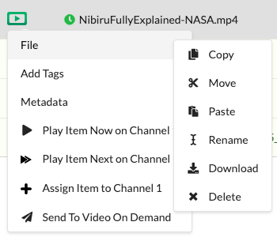
File and Folder Dropdown Menu
Clicking the down arrow next to a file or folder opens a useful menu for organizing and modifying your content.
File - The file menu offers options like Copy, Move, Paste, Rename, Download, and Delete.
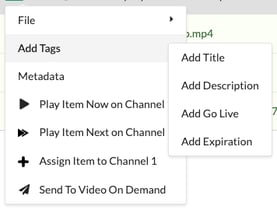
Add Tags - This feature allows you to swiftly apply standard metadata tags to your files without needing to access the edit metadata section. You can select Add Title, Add Description, Add Go Live, or Add Expiration to promptly include a field.
Metadata - The metadata menu provides options to Edit Metadata, Generate Metadata, Copy Metadata, or Paste Metadata. Learn More.
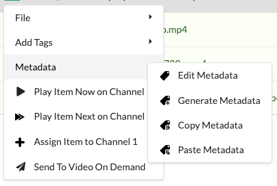
Play Item Now on Channel X - This feature enables you to broadcast an item on your channel immediately, bypassing the scheduled programming. It's ideal for airing last-minute content or testing items on your preview channel.
Play Item Next on Channel X - This feature allows you to place a video in a queue. To access or adjust the queue, click the ellipsis next to the Now Playing item.
Assign Item to Channel X - By assigning an item to your channel, you ensure that it resumes playback at the correct point even after a system restart. For instance, a schedule is typically assigned to your channel, allowing it to continue mid-video post-restart if necessary. Relying solely on Play Now and Play Next will result in a blank channel after a restart.
Send To Video On Demand - Only available on videos, projects, and playlists, the Send To Video On Demand option will send your video to CASTUS Video on Demand with a single click.
Organizing and Moving Content
In addition to the pre-populated folders, CASTUS recommends creating a Master Folder and subsequent nested folders to host and organize your content.
Creating & Deleting a Folder
- Navigate to your Library.
- From the top of the page, select Create.
- Choose Folder.
- Name your new folder and select Submit.
- To delete a folder, select the dropdown to the left of the folder name.
- Choose File > Delete.
- Confirm by choosing Yes.
Moving a File or Folder
- Navigate to your Library.
- Select the checkbox to the left of the filename.
- At the top of the page, choose Move (to move the file) or Copy (to create an additional copy).
- Navigate to the new location in your Library.
- From the top of the page, choose Paste.
Library Widget
Besides the Library tab, there is a compact version of the library, known as the Library Widget, available in Schedules, Simple Playlists, CASTUS Cuts, Background Music, and Global Media. This feature enables you to utilize your media seamlessly across these modules.