
START TECH SUPPORT VIA USER INTERFACE (VERSION 5.4.0 OR LATER)
NOTE: This feature is available with update version 5.4.0 (7-11-2022) and later. To update your system and access this feature, contact CASTUS Support at support@castus.tv.
Version 5 of the User Interface (default)
- Access your CASTUS QuickRoll or QuickCast user interface by logging in either on-site or through a public IP address.
- Click on the CASTUS Main Menu located in the top left corner and then select the Services option.
- Select Diagnostics.
- Choose Start Support Connection.
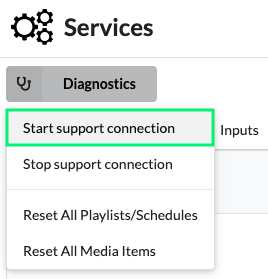
- Copy the five digit number that appears in the top right corner of your browser next to the left of the date and time.

Version 4 of the User Interface
- Access your CASTUS QuickRoll or QuickCast user interface by logging in from your on-site location or by using a public IP address.
- Select Settings from the home screen.
- Choose Technical Support.
- Select Start Support Connection.
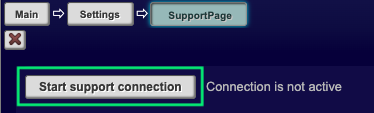
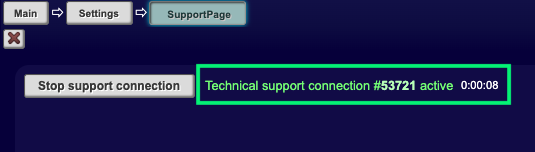
- Copy the five digit number that appears to the right of the button.
EMAIL CASTUS SUPPORT
- Email support@castus.tv with the following information:
- Five digit support ID from above.
- A brief overview of the issue you're experiencing, along with any troubleshooting measures you have already attempted prior to reaching out for support.
- Your email will generate a support ticket in our system, and our team will review and respond to your request as soon as possible.
- If we do not have your most recent root password on record, we will reach out to you to obtain that information.
NOTE: If you’re having trouble starting a support connection, you may have internet connection issues or a firewall in place that is blocking the tech support session. Please refer to our Networking Guide for IT Experts document and work with your IT department to remedy this, including asking them to verify outgoing TCP port 52222 is open.
TIP: If you're running software 5.3.0 or earlier and are looking to start the support session through the server please reference the Starting a Tech Support Connection from the Server article.