
START TECH SUPPORT VIA ON-PREMISE CONSOLE
If you’re running an older version of the software or prefer to start a support session from the on-premise unit, follow these instructions. You should be in front of the CASTUS unit on-premise with a monitor, keyboard, and mouse attached.
Upon Startup
- Log in to the unit by typing root and pressing enter, followed by the password for root and pressing enter. You will not see anything typing when you type your password but the information is being entered.

- Type startx to bring up the graphical user interface (GUI).

When in the Graphical User Interface (GUI)
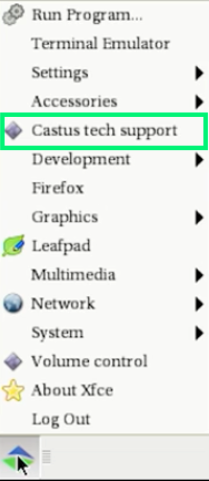 Click on the CASTUS logo start menu button in the bottom left corner of the screen.
- Select CASTUS Tech Support.
- The window that opens will have a 5-digit ID that CASTUS Support needs to access your machine. Additionally, there should be a number at the bottom of the screen that is counting up, indicating an active support connection. If you do not have a number counting up, you are not connected.
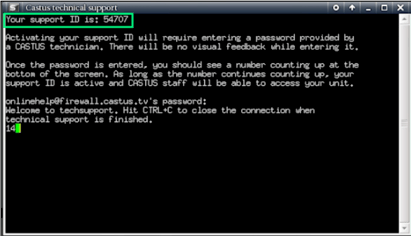
NOTE: If you don’t see the CASTUS Tech Support option, choose the Terminal Emulator and in the window that opens, type support and press enter. If your tech support session prompts you for a password to connect, type helpme123 and press enter.
EMAIL CASTUS SUPPORT
- Email support@castus.tv with the following information:
- Five digit support ID from above.
- A description of your problem and any troubleshooting steps you took before contacting support.
- This email will create a ticket in our system and will be addressed and responded to shortly.
- If we do not have your current root password on file, we will contact you for that information as well.
NOTE: If you’re having trouble starting a support connection, you may have internet connection issues or a firewall in place that is blocking the tech support session. Please refer to our Networking Guide for IT Experts document and work with your IT department to remedy this, including asking them to verify outgoing TCP port 52222 is open.
TIP: If you're running software 5.4.0 or later and are looking to start the support session through the user interface, please reference the Starting a Tech Support Session via the User Interface (UI) article.