
There are two types of stream key packages available: Essential and Static. Essential keys are dynamic, meaning they will change each time you use them. These keys must be activated before each session and deactivated afterward. In contrast, Static keys are designed to remain active indefinitely, ensuring that your stream information remains consistent. However, if you stop a Static key, it will generate a new key the next time you start it.
ACCESSING STREAM KEYS
- Navigate to cloud.castus.tv and log in with your cloud login.
- In the menu on the left side of your screen, select STREAM Keys.
NOTE: Your cloud login is NOT the same as your QuickRoll or QuickCast login.
HOW TO USE YOUR STREAM KEYS
- To start a STREAM Key, press Stream now! and wait for them to populate.

- Once the streams have started, there will be 4 unique streams for simultaneous use.
- The URL and Key are essential for your source or encoder, as they instruct the origination point on where to direct the signal. Conversely, the CASTUS item is utilized at your destination or decoder (such as your CASTUS QuickRoll or QuickCast) to receive and process the incoming signal.
NOTE: They may take a few minutes to populate and you may want to put this step at the front of your streaming workflow.
SETTING UP YOUR STREAM
This guide provides instructions using OBS as a reference; however, you can utilize any source or encoder that suits your needs. If you are new to OBS, we recommend checking out this helpful tutorial to familiarize yourself with its features, as this guide will concentrate specifically on the streaming process.
- Open Settings > Stream and choose custom.
-png-Feb-14-2025-06-41-09-5050-PM.png?width=670&height=497&name=unnamed%20(2)-png-Feb-14-2025-06-41-09-5050-PM.png)
-png-Feb-14-2025-06-41-23-3419-PM.png?width=670&height=108&name=unnamed%20(3)-png-Feb-14-2025-06-41-23-3419-PM.png)
- Copy the url of your chosen stream and paste it into the Server field (may be called something else in a different software/hardware configuration)
- Copy the Key of your chosen stream and paste it into the Stream key field (may be called something else in a different software/hardware configuration)
-png.png?width=670&height=142&name=unnamed%20(4)-png.png)
- Choose ok to save these changes.
- Select Start Streaming to begin sending your stream signal (you will NOT yet be live on a channel/destination). At this point, the STATUS of the active stream in the CASTUS Cloud Portal should say Connected to stream.
-png.png?width=670&height=215&name=unnamed%20(5)-png.png)
SETTING UP YOUR CASTUS INPUT & GOING LIVE
- On your QuickRoll or QuickCast, navigate to Services > Inputs.
- Select + New Input and choose New IP/Internet Radio Input.
- Name your input, choose Submit and select the Settings button to the right of the new input.
-png.png?width=670&height=54&name=unnamed%20(6)-png.png)
- In the settings, scroll to or search for Interface. Click to open the dropdown and choose RTMP.
-png.png?width=670&height=209&name=unnamed%20(7)-png.png)
- Scroll to or search for URL. Copy and paste the CASTUS item from your CASTUS Stream Key in the Cloud Portal to this setting in the QuickRoll or QuickCast.
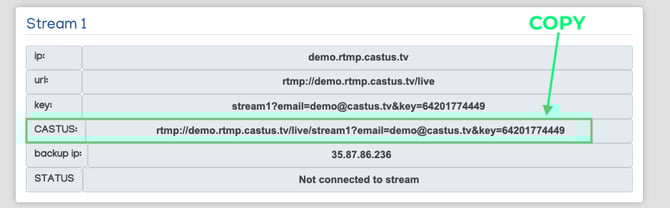
-png-Feb-14-2025-06-43-10-7659-PM.png?width=670&height=247&name=unnamed%20(1)-png-Feb-14-2025-06-43-10-7659-PM.png)
- Select Apply to save changes.
-png.png?width=670&height=194&name=unnamed%20(8)-png.png)
- To view your live input, select Controls.
-png.png?width=670&height=194&name=unnamed%20(9)-png.png)
- In the Control Window, you can perform a variety of actions aside from previewing your incoming signal:
- Go live manually on any of your channels by pressing the green arrow next to your desired channel and confirming.
- Record manually by pressing the red circle.
- Schedule a recording by choosing Add Event below the preview window and adding dates and times for the beginning and end of your recording.
STOPPING YOUR STREAM
-png.png?width=115&height=146&name=unnamed%20(10)-png.png)
- To conclude your stream, click the red square button to end the live broadcast on your channel if you initiated it manually.
- Stop Streaming on OBS.
- Stop Stream in CASTUS Cloud.
-png.png?width=670&height=111&name=unnamed%20(11)-png.png)
WARNING: If you have static streams, DO NOT STOP STREAM in the Cloud Portal. Your streams will change when restarted and the static streams are designed to be left running.