
This article applies to the CASTUS QuickRoll, QuickCast, and QuickStream including the Ultra and Mini. If you prefer CASTUS Support to apply the update for you, please email support@castus.tv with a tech support number and any notes you want to relay to our support team.
OVERVIEW
Download the update file and upload to your physical server via the User Interface (UI). Execute the update-ui command in the terminal on your CASTUS unit to initiate the update interface and proceed with the update process.
VIDEO
NOTE: The video specifies the CASTUS C4 Forum to access the latest update, but this will now be hosted on the CASTUS Support Portal.
DOWNLOAD UPDATE FILE
- *NEW* If you were not provided with the file via email, navigate to the exclusive C4 and C8 only post on the CASTUS Support Portal page to download or contact support@castus.tv for assistance.
UPLOAD FILE TO QUICKROLL OR QUICKCAST
Option 1: Web Upload
- Login to your CASTUS QuickRoll or QuickCast unit via the local or public IP address you’ve assigned to your unit.
- Choose Upload from your CASTUS home screen or in the CASTUS menu to launch the upload interface.
- In the upload interface, choose the ellipses (…) to the right of the Destination line to choose where to upload your file, and choose the Updates folder.
- Select Choose File and select the update file with the .zip extension that you recently downloaded.
- Select the Upload button to begin the upload process. You can monitor your upload on the right side of the upload screen under File Transfers.
NOTE: Do NOT unzip the file before uploading.
Option 2: USB Drive via On-Premise Unit
- Plug a USB drive into the computer you used to download the update.zip file.
- Drag and drop the .zip file onto the USB drive.
- When the file has finished copying or moving to the USB drive, eject the drive from your computer and remove the physical drive.
- Insert USB drive into your QuickRoll or QuickCast unit.
- Launch Firefox, and log into your CASTUS UI.
- Navigate to /mnt in your Library and locate your thumb drive.
- Select the dropdown arrow next to the thumb drive, and choose mount from the menu options.
- Once the drive is mounted, double click to open the drive.
- Select the dropdown arrow next to the update.zip package, and choose copy or move depending on your current software version.
- Navigate to mnt/main/updates in your Library, and paste the update.zip file into your updates folder.
- To unmount your USB drive after the copy is complete, navigate to /mnt in your Library and locate your thumb drive.
- Select the dropdown arrow next to your drive and choose unmount.
- Remove the physical USB drive from your CASTUS QuickRoll or QuickCast unit.
NOTE: Do NOT unzip the file before uploading.
WARNING: Unmounting is an extremely important step before removing the USB drive for the future health and use of the drive.
APPLY UPDATE
WARNING: Applying the update will take you off air for approximately 10 seconds or less when the software restarts. Please plan accordingly.
Option 1: Remote
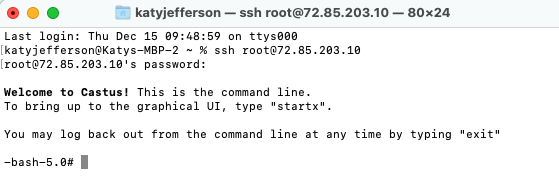
- Open the Command Prompt (PC) or Terminal Window (Mac).
- Type in “ssh root@” directly followed by your unit’s IP address.
Example: ssh root@72.85.203.10 - Hit enter.
- You may be asked to confirm the authenticity of the host. Type yes and hit enter.
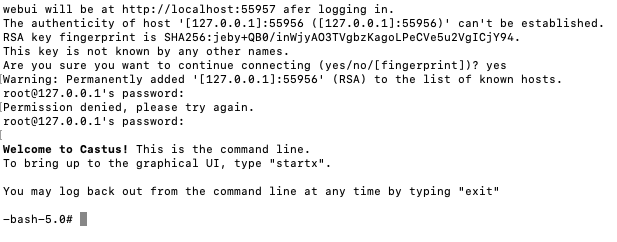
- Enter the root password for your CASTUS Unit and hit enter.
- Do not type startx.
- Follow steps from “Apply Update” below to complete the update process.
Option 2: On-Premise
- At your on-premise QuickRoll or QuickCast unit, select the menu icon on the bottom left of the screen.
- Choose Settings followed by CASTUS Update Utility.
- Follow steps from “Apply Update” below to complete the update process.
Apply Update
- Type update-ui and press enter.
- A terminal window will appear, and Apply an update will be highlighted. Press enter on your keyboard.
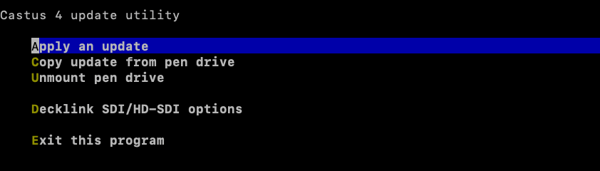
- The most recent update file will appear at the top of the list. Use the arrow keys on your keyboard to select this item and press enter on your keyboard.
- Use your arrow keys again to select OK, Apply and press enter on your keyboard.

- After a few seconds, the system will prompt you to type y to confirm you want to apply the update.
- The update will take a few minutes to apply, and a software restart will take place at its completion. Your channels restart which should take about 5-10 seconds to complete.
AFTER AN UPDATE
- Refresh your browser(s).
- Navigate to System Services (CASTUS Menu > Services > System Services) and confirm all of the services are turned on EXCEPT the following:
- SMB/CIFS access (only required for an external NAS)
- SMB/CIFS access (name lookup) (only required for an external NAS)
- FTP access (turn ON if you’re using an FTP client like FileZilla)
NOTE: You do not need to restart the unit after a software update, only refresh your browser if you have an active CASTUS session open.