
Covered in this article:
Creating Smart Folders
Any regular folder can be turned into a smart folder with a few clicks.
- To first create a folder, open the library.
- Select the Create at the top and choose Folder.
- Name your folder and select Submit.
- To then make it a smart folder, select the dropdown next to the folder on the left.
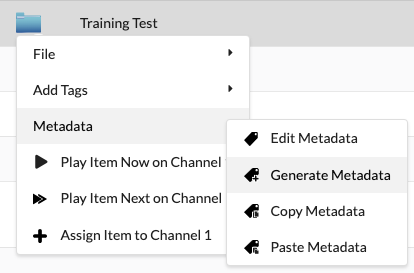
- Select Metadata > Generate Metadata.
- Once generated, a play icon will appear on the folder’s image, indicating it’s now a Smart Folder.

Smart Folder Considerations
- Content Durations Required: All media items within the folder must have a duration assigned via metadata tags. Without this, the system won’t be able to calculate how items fit into a scheduled time slot.
-
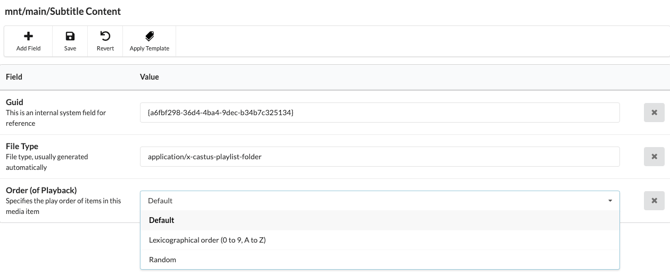
Playback Order Control: You can control how content plays back by applying the Order (of Playback) metadata tag to the folder. This determines whether items play lexicographically (based on filename, creation date, etc.) or randomly.
-
Time Slot Filling: When used in a schedule, the system intelligently selects content from the folder that best fits the assigned time slot, based on each item's metadata duration. This allows for automated, efficient scheduling. If there is not an item short enough to fit in the remaining time, it will be black until the next scheduled program or default item plays.
-
Common Use Cases: Smart Folders are often used to fill content gaps with non-time-sensitive programming, such as PSAs, bulletin board, or evergreen content. By replacing items in the smart folder, you can keep this type of content fresh and varied without manual oversight.
Adding Metadata to a Smart Folder
Metadata can be applied to a Smart Folder to customize its behavior, such as setting the Order (of Playback) and other properties that influence how and when content is scheduled.
- Select the dropdown to the left of the folder.
- Choose Metadata > Edit Metadata.
- Select the plus Add Field icon at the top.
- Choose your metadata field such as Order (of Playback).
- Enter or select the value.
- Choose Save.
Adding a Duration to a Slide
All items in a smart folder need to have a duration in order to play in the regular rotation.
Adding During Upload
- After choosing a file in the upload screen, select Metadata Template.
- Choose a custom template or choose Slide Master.
- Select Populate Metadata.
- Fill in the duration field. The default duration for Slide Master is set to 15 seconds.
- Select Done.
Adding After it Has Been Uploaded
- Navigate to the item in the Library.
- Use the drop down to select Metadata > Edit Metadata.
- Select Add Item at the top and choose Duration.
- Enter your duration value and Save.
- Repeat for additional slides.