
Setting customized permissions for additional CASTUS users for your on-premise machine is quick and easy.
Adding a New User
- Log in to your machine with root or another user that has permission to add users.
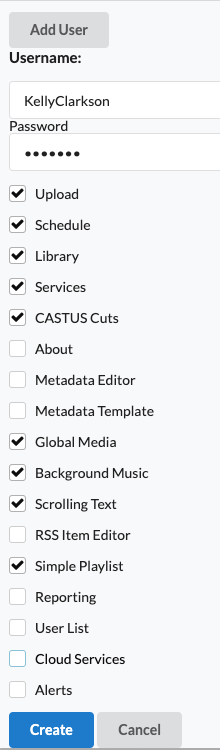
- Navigate to CASTUS > User List.
- Select Add User below the list of users.
- Enter a username and password for the user.
- Select the permissions you want the user to have.
- Select Create.
Changing a User's Permissions
- Log in to your machine with root or another user that has permission to edit users.
- Navigate to CASTUS > User List.
- Check or uncheck the permissions for the desired user.
- Select the save icon to the right of the user's row.
Changing a User's Password
- Log in to your machine with root or another user that has permission to add users.
- Navigate to CASTUS > User List.
- Select the pen icon to the far right of the user's row.
- Enter new password for user and click submit.
- Confirm new password and click submit.
Deleting a User
- Log in to your machine with root or another user that has permission to add users.
- Navigate to CASTUS > User List.
- Select the trash icon to the far right of the user's row.
- Confirm to delete user.