Inputs can be scheduled to go and end live at specific times, saving you time and giving you the freedom to be present at your live event.
- Open your schedule via one of the following methods:
- If you have it already assigned to your channel, click once on the confidence monitor and then select CASTUS > Schedule or use the Schedule shortcut pinned on the task bar.
- If you have it already assigned to your channel, click on the schedule name under the confidence monitor.
- Navigate to the schedules folder in the Library and double click on the schedule file you want to edit.
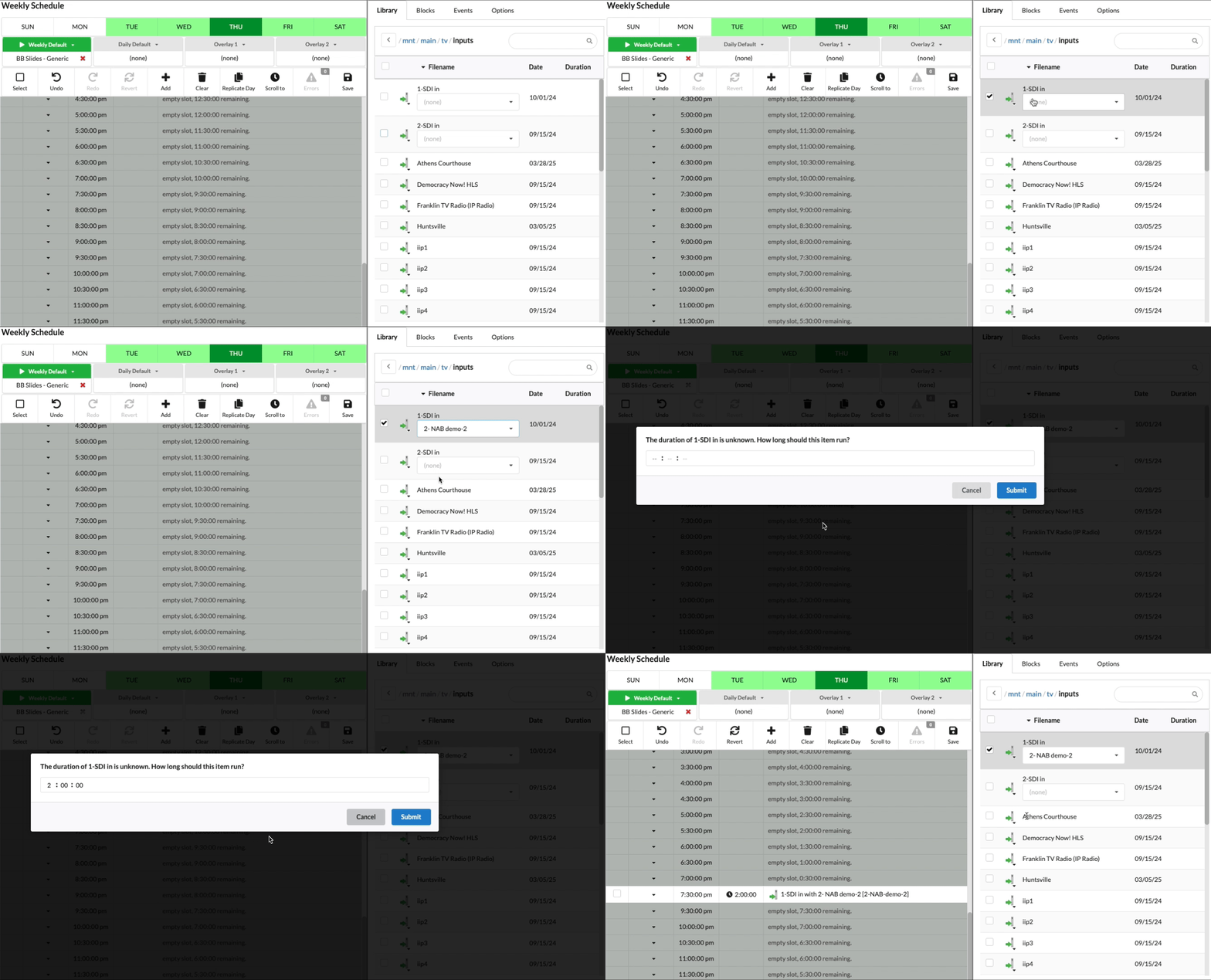
- In the Library widget on the right, double click tv > inputs from the main folder.
- Single click the input you want to schedule.
- If you have a router, click the dropdown to select the route you want to schedule.
- Click in the timeslot of your choice to place the switch.
- Set a duration for how long you want the input to be on.
- Select Submit.