
Viewing the Schedule
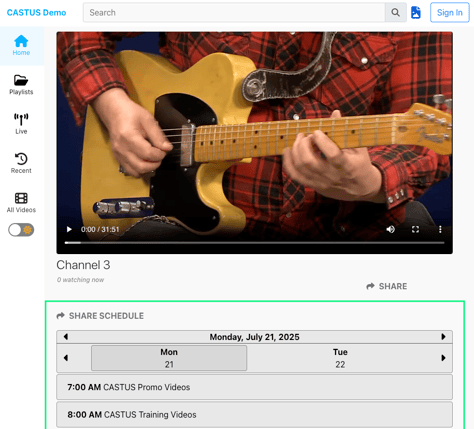
With CASTUS Cloud Services (CCS) the schedule can be viewed on the live page of your public site.
- Open your public site or click the blue video button in the bottom left of the CCS admin portal.
- Select a live stream to view.
- Scroll down below the live stream to see the associated live schedule.
Customizing the Schedule
Customize the look of your schedule in the CCS Admin Portal to fit your branding and color scheme.
- Log in to the CCS admin portal at cloud.castus.tv.
- Select Settings from the bottom of the menu on the left.
- Scroll down to Web Schedule Guide Settings.
- Adjust the colors for your schedule by choosing a color or entering a hex code.
- Web Schedule Primary: Highlights the current day.

- Web Schedule Secondary: The background color for your web schedule.

- Web Schedule Live: Highlights what is currently playing live.

- Web Schedule Available: Highlights content that is also available to watch on VOD.

- Web Schedule Primary: Highlights the current day.
- Scroll to the top and choose Save Changes in the top left.
Sharing the Schedule
Sharing your online schedule is quick and easy.
- Once on your public page, select a live stream to open your stream and schedule.
- Select the Share Schedule button above the schedule window to open the share options for your live schedule.

- Select the first icon to copy the schedule’s link to your clipboard.
- Select the second icon to copy the schedule’s embed code to your clipboard.
- Paste your copied link or embed code into the desired location to share your schedule.