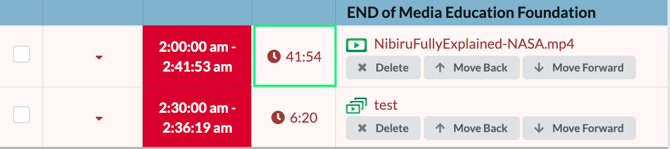
Schedule errors arise when programs overlap or when insufficient time is allocated for a program to finish. If a schedule error occurs, the program will automatically play until the end of the available time, at which point it will be interrupted and transition to the next scheduled program.
Creating Schedule Errors
A schedule error occurs when an item is added to a time slot that’s too short for its full duration. You’ll receive a notification prompting you to either continue with the addition or undo the action.

This can also occur if you increase the duration of a block and replicate it across your schedule, but another time slot doesn’t have enough space to accommodate the full block.
Identifying Schedule Errors
In the Schedule
Schedule errors appear in the schedule as red with options to fix the error inline with the scheduled item.
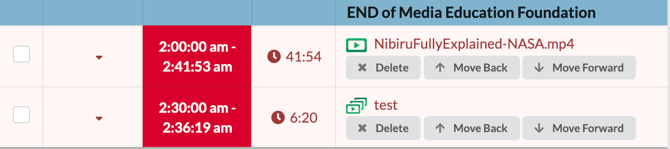
Additional Schedule Errors
To find additional schedule errors, use the Errors button at the top of the schedule to cycle through errors. There will be a number in the top right indicating the number of errors in your schedule.
Fixing Schedule Errors
Inline Buttons
Using the inline buttons on schedule errors is quick and easy.
- Identify your schedule errors.
- Use Delete, Move Back, or Move Forward on the scheduled item you want to adjust.
NOTE: This may cause a ripple and results in additional schedule errors. Make sure to have sufficient time available to move your item back or forward.
Duration
It is also possible to cut a program at the error point. This is non-destructive and only effects that single instance of the program in your schedule.
- Identify your schedule errors.
- Click on the duration of the clip in the schedule.
- Enter in a new duration for the clip in the pop up window and submit.