
CPU issues are more likely to present with older systems. If you’re interested in upgrading your unit, please reach out to sales@castus.tv.
HIGH CPU SYMPTOMS
- Video freezing or stuttering
- Audio distorted or dropouts
CHECKING YOUR CPU LOAD
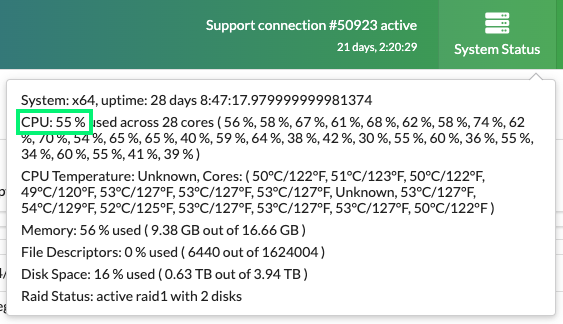
Version 5
- In the Web UI, select System Status on the top right of the screen.
- Look at the numbers for CPU.
- If the average is above 60%, you may be at risk for problems with your broadcast.
Version 4
- Select the house icon above the shortcuts in the upper left.
- At the bottom of the page is the CPU load across all cores.
- You want this below 60%. If not, you may be at risk for performance problems.

REDUCING YOUR CPU LOAD
These are the most common causes and will greatly lower CPU load.
- Exit Firefox on your on-premise unit. Accessing the CASTUS through a remote browser is preferred, especially for high CPU issues.
- Stop your Preview Channel by going to CASTUS > Services and choosing the Stop button to the right of your Preview Channel.

IF STILL EXPERIENCING HIGH CPU LOAD
While you may utilize any of these features, keep in mind that operating several of them at the same time across multiple channels may increase your CPU usage to a critical level.
- Stop and turn off autostart on unused IP outputs, especially HLS as it is ALWAYS streaming even when nothing is listening on the other end.
- Limit the number of inputs being recorded at the same time, especially when broadcasting live.
- Limit the number of overlays and global media regions.
- Limit the use of CASTUS Cuts Projects with a lot of regions.
- Avoid unnecessarily resizing SDI or IP outputs (such as resizing to the same size or larger than the channel).
- Decrease IP output h.264 video bitrates to 4mbits/sec or lower.
POSSIBLE HARDWARE CAUSES OF STUTTERING
It is recommended to contact CASTUS Support to help in resolving any hardware issues.
- RAID is rebuilding or a drive is failing. RAID status “rebuilding” ties up bandwidth on the motherboard. RAID status is available below CPU load. To determine if a drive is failing, have CASTUS support check disk S.M.A.R.T. data.
- The CPU is too hot. CPU temperature should be less than 65°C or the CPU may slow down leading to stuttering. CPU Temperature is available below CPU load in System Status.