
One of the themes of CASTUS is flexibility—there’s usually more than one way to get things done. When it comes to recording live events, you can choose the approach that best suits your production needs.
Manual Recording
This method allows you to start and stop recordings manually in real time.
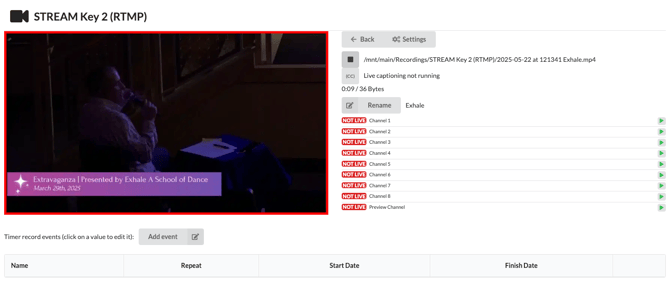
- Navigate to CASTUS > Services > Inputs > Controls (click the Controls button next to your input name).
- Click Rename to name your recording.
- Press the red circle button to start recording.
- Your recording will be saved to the default folder: main/Recordings/INPUT_NAME.
- Press the gray square button to stop recording.
Timer Recording
Automate your workflow by scheduling recordings in advance.- Go to CASTUS > Services > Inputs > Controls.
- Click Add Event below the input preview.
- Enter a recording name. The system will append the date and time to the filename.
- Set your Start and End date and time.
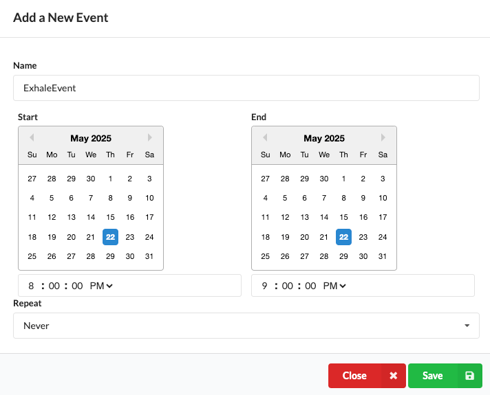
- If this is a one-time recording, click Save.
- If this is a recurring event, select a frequency under Repeat and then click Save.

NOTE: Recordings can stop early if signal is lost. Always set the end time later than expected to ensure full coverage. You can trim recordings afterward.