Assign the Schedule to a Channel
A system may have multiple schedule files created but only the schedule assigned to a channel will be active. In addition to schedules, you can assign various other content types to your channel, such as a Simple Playlist, a CASTUS Cuts Project, or even an individual item. To do this, simply follow the same steps outlined below, using the action dropdown menu for the content you wish to assign. Only one item may be assigned to a channel at any given time.
- Select the channel from your confidence monitors by clicking in the middle of the confidence monitor for your desired channel. A white highlight will appear around the confidence monitor for the channel that is selected.
- From the CASTUS Main Menu or the Home Screen, choose Library.
- In the Library, navigate to the schedule file you wish to assign to your channel. Schedules are saved to the Schedules folder by default.
- Select the action drop-down arrow to the left of the schedule and choose Assign Item to Channel [X].
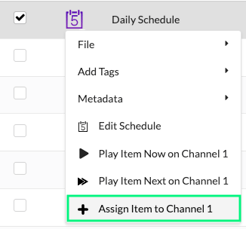
- A dialog box will prompt you to confirm the assignment of the schedule to the channel. Select Yes.
- The schedule will synchronize with the system clock, ensuring it starts at the correct time, and begin playing immediately.
- Once a schedule is assigned to a channel, you can open the schedule by selecting the channel confidence monitor, and then selecting the Schedule button from the CASTUS Main Menu or the Home Screen.
Play Item Now
Using the Play Item Now feature will temporarily disrupt your currently assigned content to play a new item. By default, this new item will play once and then revert back to the previously assigned content. However, it is important to note that CASTUS does not recommend using Play Item Now for schedules, as they will not remain active after a system reboot and will be overridden by going live manually.
- Select the channel from your confidence monitors by clicking in the middle of the confidence monitor for your desired channel. A white highlight will appear around the confidence monitor for the channel that is selected.
- From the CASTUS Main Menu or the Home Screen, choose Library.
- In the Library, navigate to the file you wish to play now on your channel.
- Select the action drop-down arrow to the left of the schedule and choose Play Item Now on Channel [X].
- A dialog box will prompt you to confirm your intent to interrupt what is currently playing on your channel. Select Yes.
- The item will begin playing from the beginning.
Play Item Next
Using Play Item Next will add items to a queue. If you want to play two items in succession, for example, you can use Play Item Now and Play Item Next to queue up the two items and then return to your assigned item when the queued items are finished.
- Select the channel from your confidence monitors by clicking in the middle of the confidence monitor for your desired channel. A white highlight will appear around the confidence monitor for the channel that is selected.
- From the CASTUS Main Menu or the Home Screen, choose Library.
- In the Library, navigate to the file you wish to play next on your channel.
- Select the action drop-down arrow to the left of the schedule and choose Play Item Next on Channel [X].
- A dialog box will prompt you to confirm your intent to interrupt what is currently playing on your channel and add it to the end of the queue. Select Yes.

- The item will begin playing from the beginning after the currently playing item.
Queued Items & Returning to the Assigned Item
Queued items show in a list that can be managed including looping, going to the next item, or returning to the assigned item to your channel. To stop your currently playing item(s), follow the below instructions to return to Assigned Item. If you do not have an item assigned to your channel, it will return to black.
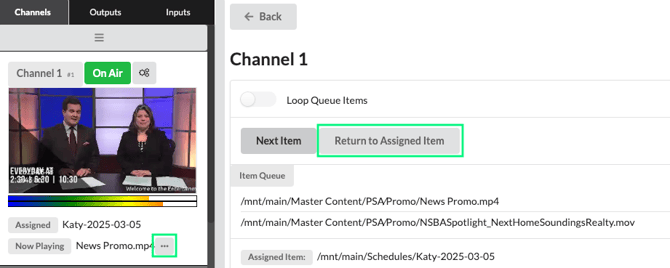
- If your channel is playing an item that was not assigned, it will have a button with three dots next to the Now Playing item underneath the confidence monitor.
- Select the three dots to open the Item Queue.
- Use the toggle next to Loop Queue Items to temporarily loop items until you are ready to return to your Assigned Item.
- Select Next Item to force the next item to play now.
- Select Return to Assigned Item to return to your regularly scheduled programming.