
Overlay
Every schedule type includes two overlay areas located to the right of the schedule and daily defaults. These overlays are intended to display in full-screen mode for the whole duration of a scheduled program. Consequently, they will appear over everything in your schedule, except for your schedule default or when you manually go live from an input.
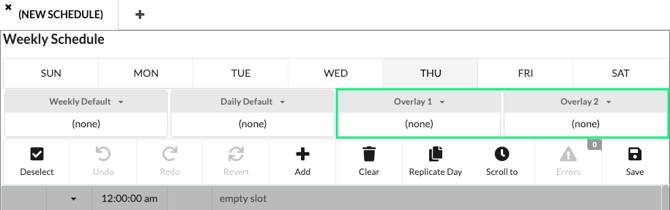
Before uploading, ensure your logo is positioned and sized to your preference, or utilize a CASTUS Cuts project to adjust its size and placement. Whether you're using a directly uploaded logo or one from a CASTUS Cuts project, access your designated schedule and click and stick the desired item into the Overlay 1 or Overlay 2 section of your schedule.
If you apply a video or a CASTUS Cuts project to an overlay, it will continuously loop throughout your programming.
Global Media
This option allows you to have a logo on screen 24/7 which includes your programming, schedule default, and any manual live broadcasts.
To use Global Media, select it from the CASTUS Main Menu. Find your media item in the Library widget on the left, and click and stick into an empty region on the right.
You can now size and place your logo in the preview screen, and save changes to apply your bug immediately.
Global media is set on a channel level and to change another channel’s Global Media, click on the channel’s confidence monitor on the left.
WARNING: Do not uncheck the first region labeled "Item" or your channel will go dark.