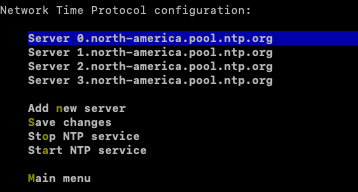
Network Time Protocol (NTP) is used to sync the time on the CASTUS with a standardized time clock. The default servers we use at CASTUS are as follows:
server 0.north-america.pool.ntp.org
server 1.north-america.pool.ntp.org
server 2.north-america.pool.ntp.org
server 3.north-america.pool.ntp.org
Source: https://www.ntppool.org/zone/north-america
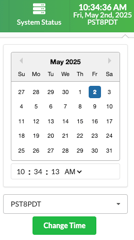
NOTE: Network Time Protocol does not change the time zone that your server is set to. To change the time zone, click on the date and time in the upper right hand side of your user interface and use the dropdown to change the time zone.
Changing NTP Settings
If you have a local NTP server or prefer to use a different one, you can update the settings through the net-ui interface on your server.
Accessing Your Server
On-Premise Access
-
Connect a mouse, keyboard, and monitor to the server.
-
Log in using root credentials.
-
Type
startxto launch the graphical interface. -
Open the Terminal Emulator from the menu in the bottom-left corner.
Remote Access
-
On a computer connected to the same network as your CASTUS device:
-
Mac: Open Terminal.
-
Windows: Open Command Prompt.
-
-
Connect via SSH using:
ssh root@LOCAL_IP_OF_CASTUS -
Log in with root credentials.
-
Launch the network interface with:
net-ui
Updating NTP Settings
-
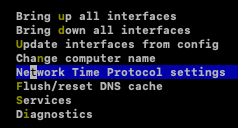
Use arrow keys to select Network Time Protocol Settings and press Enter.
-
To delete existing servers, move the cursor to the server, press enter, and clear the line.
-
To add new servers, follow the on-screen prompts:
-
Add new server(s) -
Save changes -
Stop NTP service -
Start NTP service
-