Click and Drag - To begin, simply click on the file or folder you wish to move, then hold down the mouse button while dragging it to your desired location. Release the mouse button to prompt the movement of the item.
NOTE: If you encounter any difficulties, ensure that you first select the file or folder by clicking on it before proceeding to click and drag it to the desired location.

Copy and Paste - Choose the item(s) you wish to move, then press Command/Control + C on your keyboard to copy them. Next, navigate to your desired directory and press Command/Control + V to paste the items there.
NOTE: Using Copy and Paste will transfer your item to the new location instead of creating a duplicate.
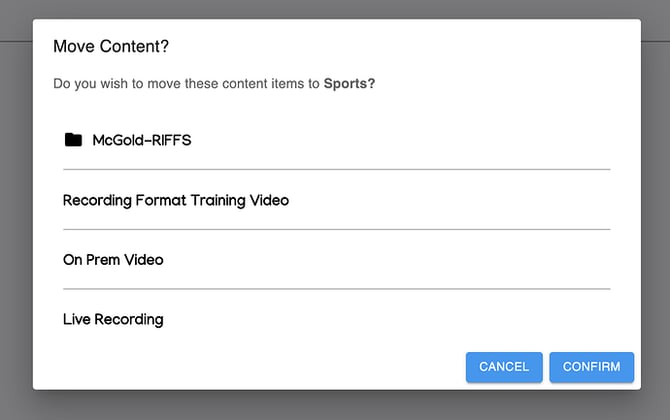
Move Multiple Files - Both methods described above can be applied to move either a single file or multiple files at once. To select multiple files, start by clicking on one file with your mouse. Then, while holding down the Control key (on PC) or the Command key (on Mac), click on any additional files you wish to include. Once you have made your selections, you can proceed with your preferred moving method to transfer the group of files and folders.
NOTE: You can also utilize the Shift key to select a consecutive range of files. Start by clicking on the first item, then hold down the Shift key while clicking on the last item in the desired range before proceeding to move them.

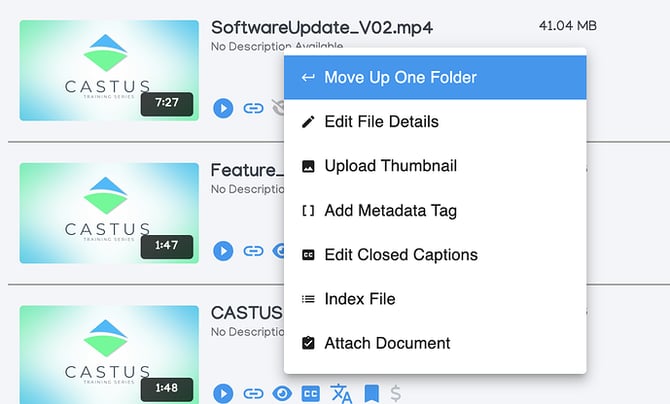
Right Click File - To move a file to the previous directory, right-click on the file and select "Move Up One Folder."
NOTE: The right-click menu offers various options, so feel free to explore and discover additional functionalities.