
Metadata can be pulled over from your QuickRoll or QuickCast by using Send to Video On Demand for your content or you can input metadata manually in your Cloud Portal.
Using Send to Video on Demand via the Server
- Edit the metadata of your file on your server BEFORE sending to video on demand.
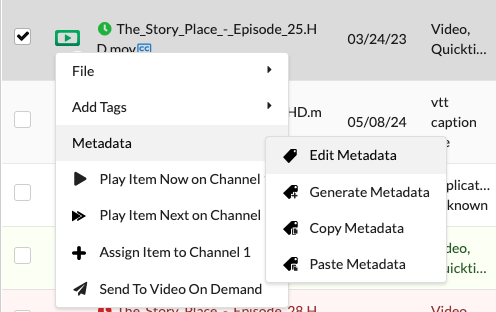
- Use the dropdown for the file and choose Edit Metadata. Depending on your version of CASTUS, you may find this in the root menu or in a submenu.
- Add metadata categories by choosing Add Field.
- Populate the metadata as you see fit.
- The Title field will become the name of the video on VOD. If left blank or not included, the filename will be the name of the video on VOD.
- Save your metadata.
- Use the dropdown to select Send to Video On Demand.
NOTE: After you send a file to Video On Demand (VOD), the metadata becomes independent. This means you can modify the metadata in either the cloud or on the server without impacting the other version.
Adding Metadata in the CASTUS Cloud Admin Portal
- Select the pen icon to the right of the video or right click and choose Edit File Details.
- Select Add Metadata Tag.
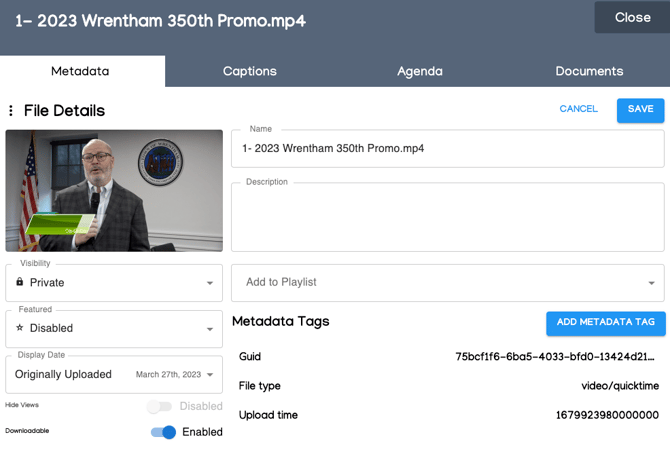
- Choose from a number of tag types or create your own custom tag in this window.
- Add the Value (data) and then choose Add Tag.
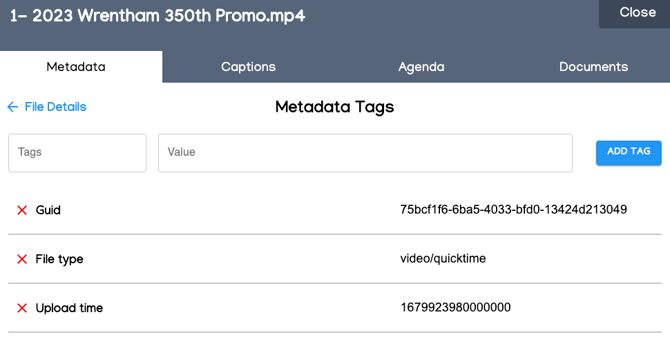
- Select the back arrow by File Details to return to the previous screen.
- Save your changes.