
Covered in this Article:
Adding Metadata
On Upload
- Choose Upload from the menu bar or navigate to CASTUS > Upload.
- Select Choose File to select a file to upload from your local computer.
- Select the dropdown for Metadata Template.
- Choose a template.
- Select Populate Metadata.
- Enter the values for the specific program you are uploading. This will not change your template and will only add metadata to the specific item you are currently uploading.
- Choose the plus icon to add additional fields for this upload only.
- Select Done.
- Select Upload to upload the media item with metadata.
In the Library
- Navigate to the media item in your Library to which you want to add metadata.
- Select the action dropdown to the left of the file and choose Metadata > Edit Metadata.
- Choose the Add Field button to apply individual items or choose Apply Template to choose from your list of templates.
- Fill out the metadata for this specific program.
- Select Save at the top.
Metadata Templates
Metadata templates are useful when you have content that will have similar or the same metadata for each upload. For example, a template can be used for a series show, government meeting, or a bulletin upload.
NOTE: You do not need to add duration for videos as the system will auto-generate that data along with the resolution, upload time, and GUID. Duration is recommended to be added for images.
Create from Scratch
- Navigate to CASTUS > Metadata Template.
- Select the plus icon to add a metadata field.
- Complete the metadata fields with information that will remain consistent across each upload, such as the series name, producer, and similar details.
- Ensure to leave the metadata fields blank for any information that will vary with each upload, such as episode number, meeting date, or episode title.
- Save your template.
- The newly created template will be accessible in the dropdown menu during the upload process, as well as through the Apply Template option when you edit the metadata of a file after it has been uploaded.
Edit an Existing Metadata Template
- Navigate to CASTUS > Library.
- Open the Metadata Templates folder.
- Double click the template to open and edit.
- Select the plus icon to add a metadata field.
- Complete the metadata fields with information that will remain consistent across each upload, such as the series name, producer, and similar details.
- Ensure to leave the metadata fields blank for any information that will vary with each upload, such as episode number, meeting date, or episode title.
- Save your template.
Metadata for Coming Up Next
The Coming Up Next feature in the CASTUS system leverages specific tags to pull and display relevant media item information on screen. Several tags are associated with various metadata elements, allowing for a seamless integration of content details. For comprehensive guidance on creating this item, please refer to the article on the Coming Up Next feature.
Author: The name of the individual or entity responsible for producing or creating the media item.
Episode: The name or number of the specific episode.
Summary: A concise overview of the video, ideally limited to 50 characters.
Title: The program's title is displayed here. If a title tag is not provided, the system will default to showing the filename of the video as the title.
Metadata for CCS Live Schedule
The CCS live schedule employs metadata to effectively display information in your online schedule. The integration of GUID numbers between the server and the Video On Demand (VOD) system enables the functionality of the "Watch Now" feature. For further details on managing CCS live schedules, please refer to the article on CCS Schedules.
When the Send to Video On Demand option is selected from the server, the existing metadata is duplicated in the cloud portal. After the transfer to VOD is completed, the metadata in the cloud and on the server becomes unlinked, requiring independent editing for both. While all metadata is transferred, the following items are particularly important to ensure are included.
Summary: A concise overview of the video, ideally limited to 50 characters.
Title: The program's title is displayed here. If a title tag is not provided, the system will default to showing the filename of the video as the title. Please note that if you want to display the episode in the title of the video, it must be included here for CCS.
Search Tags: This is a free-form field intended to carry searchable tags, separated by spaces. This can be used to help certain shows appear by specific keywords on the CASTUS VOD system.
Metadata for Reporting
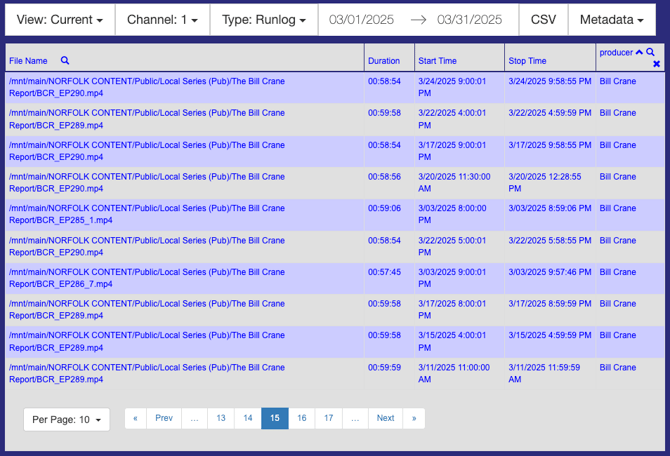
Metadata is also crucial for reporting. Reporting can add any metadata tag category to the report, allowing you to filter and sort by these tags once downloaded as a .csv file. Examples include Producer, Category, Author and many more.
Go Live and Expiration
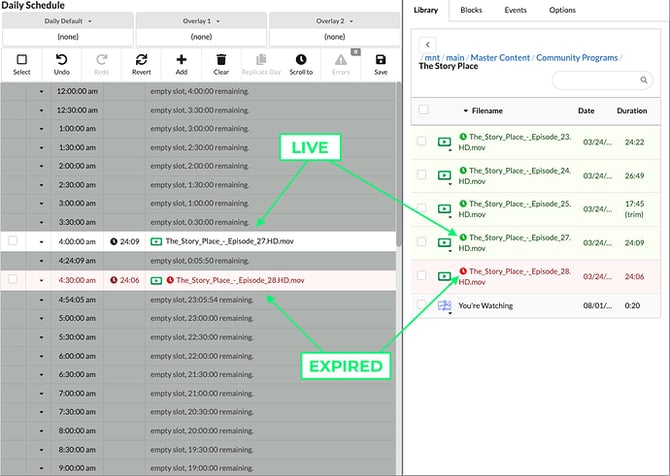
The Go Live and Expiration metadata tags, previously known as Content Window Open and Content Window Close, are essential for keeping your programming current. The Go Live tag specifies the date when a program becomes available for airing, while the Expiration tag indicates when it will no longer be broadcasted on the channel. If a program falls outside of its designated live window, it will not be played in your schedule. Instead, the system will either revert to the default schedule or, in the case of a simple playlist, skip the program entirely.
- To set these parameters, select the action dropdown to the left of your file and choose Metadata > Edit Metadata.
- If you do not see the Go Live and Expiration parameters listed, select the plus icon for the Add Field option and select Go Live.
- Repeat for Expiration.
- Select your day/time for each parameter.
- Save your changes.
Metadata Tags
Aspect Ratio: Overrides the media item’s normal aspect ratio in case of encoding errors.
Audio Channel Selection: Allows remapping of stereo audio channels to correct authoring mistakes.
-
Common issue: All audio in the left channel, right channel mute.
-
Fix: Use mono downmix or map a single channel to both speakers.
-
Also useful for VideoCD content where left and right channels carry different languages.
Author: A free-form field for the author(s) of the media item.
Background Music: Controls background music playback. Default: If No Audio.
-
On – Background music plays regardless of media audio.
-
Off – Background music disabled at all times.
-
If No Audio – Background music plays only if media has no audio.
Category: A user-defined field for categorizing the file.
Copyright: A free-form field for copyright information (may include the © symbol).
Description: A detailed description of the file. Use Summary for a shorter one-liner.
Downloadable: Overrides the “Disable Download” setting for Google Chrome’s video player (Legacy VOD users).
Duration: Numeric value (seconds) indicating media length. Allows subsecond precision.
DVB Content Identifier: Hexadecimal code describing content for Digital Video Broadcasting regions.
Episode: A user-defined episode name or number.
Expiration: Sets the content expiration date (YYYY-MM-DD HH:MM:SS UTC). After this date, CASTUS won’t play the item unless forced via "play now."
Field Order: Overrides interlaced field order in case of encoding mistakes.
-
Valid values: None, Top, Bottom, Inverse.
-
None: Displays content as progressive scan.
-
Top/Bottom: Forces a specific field order.
-
Inverse: Swaps field order (top field first → bottom field first).
-
File Type: Stores the detected file type in Internet MIME format. Editable if misidentified.
Go Live: Sets the content release date (YYYY-MM-DD HH:MM:SS UTC). Before this date, CASTUS won’t play the item unless forced via "play now."
In: Defines the playback start time (in seconds), skipping extra titles or black frames.
Inner Crop: Adjusts how the video frame fits the screen (0-100 scale).
-
0: Letterbox/Pillarbox (no content cropped).
-
100: Zooms in fully (fills screen, crops edges).
Offline: If set to on, the item won’t auto-play. Schedules skip it unless manually played.
Order: Controls playback order for scheduled folders.
-
Random: Default if unset. Plays in a truly random order, meaning it does not repeat the items sequentially.
-
Lexicographical: Files play in alphanumeric order.
Out: Defines the playback stop time (in seconds), preventing excess black space at the end.
Producer: A free-form field for the producer(s) of the file.
Program: Defines the program name, used to group episodes in the CASTUS Legacy VOD widget (NOT CCS Cloud VOD). This item is case-sensitive and must match exactly for the Legacy grouping to take place.
Program Language: Specifies the primary language (ISO 639-2 format).
-
Examples:
eng (English),fre (French),ger (German).
Rating: Stores content ratings for EPG and on-screen display.
-
Examples:
-
TV-Y(All ages) -
TV-Y7(Ages 7+) -
TV-MA(Mature audiences)
-
Recommended Minimum Age: Specifies age restrictions (4-18, for Digital Video Broadcasting regions).
Schedule Announce: Controls if the item appears in the schedule.
-
Default: Shows in the schedule by default.
-
Always: Always listed.
-
Never: Never listed.
Search Tags: Free-form keywords for searchability in CASTUS VOD.
Season: User-defined season information (e.g., “Season 1,” “CASTUS Training”).
Sort Order: Numeric ranking for VOD content display. Higher numbers appear first.
Stretch to Fit: If set to 1, stretches the video to fill the screen (distortion may occur).
Summary: A brief description (recommended max: 150 characters).
Title: Displayed media title. Title is used for announcing in the schedule. For Coming Up Next, it defaults to Program - Episode if unset. For CCS Video On Demand and CCS Live, it defaults to the filename if unset.
Upload Time: Timestamp of file upload (MM/DD/YYYY, HH:MM:SS [AM/PM]).