
Live captions, file-based captions, and translations are additional services available in the CASTUS Cloud Portal. For more information or to purchase any of these services, please reach out to sales@castus.tv.
CAPTION NOTES
- Captions can be embedded into the file or can be recorded as sidecar files in different formats (vtt, mcc, & scc). If you need help changing these settings, please reach out to support@castus.tv.
- If you choose to send your captioned video to Video On Demand, the captions will transfer with the file as long as the sidecar file is in the same directory as and has the same name as the video file or the captions were embedded.
LIVE CAPTIONS
Setup
- Log in to your on-premise server and select CASTUS > Cloud Services.
- Log in with your CASTUS Cloud Services account to connect your server to your cloud services. This step should only need to be done once.
Execute Captions
- Navigate to your active input by going to CASTUS > Services and selecting Inputs.
- Select the Controls button to access the recording controls.
- The CC icon under the record button will become selectable after a few seconds.
- Press the CC button to engage captions.
- Verify captions are passed through by viewing the caption status under where your channels go live.
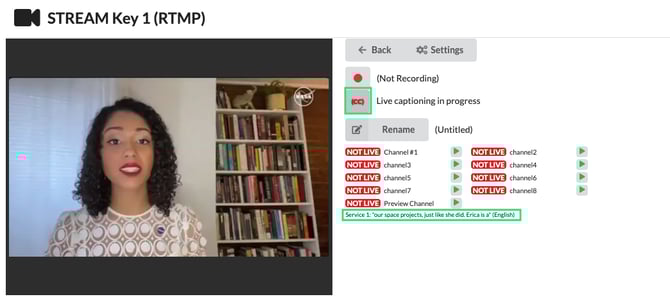
- Be sure to capture both your video input and captions by either clicking the record button or configuring a timer to automate the recording process.
Replay Caption Sidecar Files
- You have the option to use sidecar files, which are separate caption files that accompany your video recording. To ensure the captions play correctly with your video, both the video file and the sidecar file must be stored in the same directory and share the same name, except for the file extensions.
- Schedule your video file as you normally would, and the system will automatically find the associated caption file to play along with your video.
-png-4.png?width=485&height=108&name=unnamed%20(1)-png-4.png)