
Create a Live Agenda
- Navigate to cloud.castus.tv/admin and log into your cloud account.
- On the left hand side, select Agendas > Live Agenda.
- Use the Project Title box to name your agenda.
- Select the feed you want to see and hear from the Live Channels dropdown menu.
- When you are ready to start adding chapters, select Start.
- Select Add each time you want to add a chapter to your agenda.
- Edit the title, description, and optionally the hyperlink for each chapter.
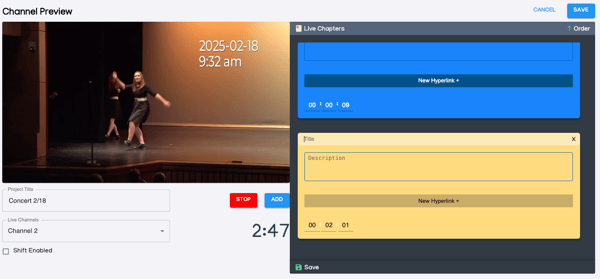
- Adjust the timecode if needed.
- Enable the Shift Enabled option below the live channels dropdown to adjust all chapters simultaneously by the same time interval. Once you have made the desired adjustments, be sure to disable this option to avoid unintentionally shifting the chapters in the future.
- Save throughout your live event and choose Stop when you are finished.
Adding a Live Agenda to a VOD Video
- Once your VOD video has been successfully uploaded and processed in the cloud, access the video's file details and proceed to the Agendas section.
- Select Add Live Agenda in the lower right.
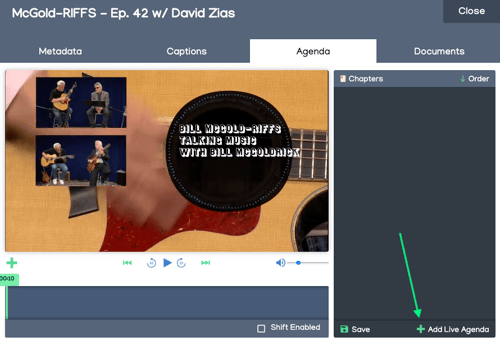
- Select the Live Agenda you created from the list.
- Adjust your chapter points as needed. Use Shift Enabled to shift all chapter points by the same increment.
- Save your agenda.