
SSL certificates are utilized to prevent website impersonation. They are not designed for restricted access web servers like the CASTUS user interface.
CASTUS provides a self-signed certificate. If the certificate is expired, you can renew it by using the following command: castus-new-ssl-certYour network may enforce stringent policies that prohibit the use of self-signed certificates. Within your company's internal network, HTTP is typically adequate and functions effectively. However, for external connections, HTTPS is advised to enhance security. Additionally, some browsers may no longer support self-signed certificates.
WARNING: Your internal IT department or provider should follow these instructions if they decide to install a certificate that is not self-signed. CASTUS is not responsible for this process.
Overview
This guide will cover enabling HTTPS/SSL on your CASTUS server using a free certificate from Let’s Encrypt.
NOTE: Alternatively, you may use different SSL certificates; however, you should consult your certificate provider for guidance on how to implement them on the Apache Web Server on your CASTUS Server.
Prerequisites
- External DNS for your CASTUS server.
- Allow inbound TCP *80 and 443 to your CASTUS Server.
- Domain (named) address.
SSH Into CASTUS
- Open the Command Prompt (PC) or Terminal Window (Mac).
- Type in “ssh root@” directly followed by your unit’s IP address.
Example: ssh root@72.85.203.10 - Hit enter.
- You may be asked to confirm the authenticity of the host. Type yes and hit enter.

- Enter the root password for your CASTUS unit and hit enter.
- DO NOT TYPE STARTX
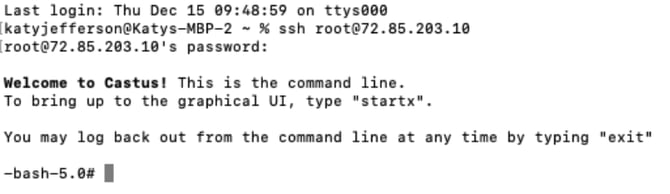
- DO NOT TYPE STARTX
Option 1: Installing the Certificate Using Certbot
In your SSH window or via the command line on the CASTUS itself, complete the following steps:- Enter the following commands one at a time:
cd /mnt/main/tv/
git clone https://github.com/certbot/certbot
cd certbot
python3 tools/venv.py
chmod +x venv/bin/activate
venv/bin/activate
venv/bin/certbot certonly - Then you will have to answer this question: How would you like to authenticate with the ACME CA? Select the appropriate number from the list below, [1-16] then [enter] (press 'c' to cancel)
1: Obtain certificates using a DNS TXT record (if you are using Cloudflare for DNS). (dns-cloudflare)
2: Obtain certificates using a DNS TXT record (if you are using CloudXNS for DNS). (dns-cloudxns)
3: Obtain certs using a DNS TXT record (if you are using DigitalOcean for DNS). (dns-digitalocean)
4: Obtain certificates using a DNS TXT record (if you are using DNSimple for DNS). (dns-dnsimple)
5: Obtain certificates using a DNS TXT record (if you are using DNS Made Easy for DNS). (dns-dnsmadeeasy)
6: Obtain certificates using a DNS TXT record (if you are using Gehirn Infrastructure Service for DNS). (dns-gehirn)
7: Obtain certificates using a DNS TXT record (if you are using Google Cloud DNS for DNS). (dns-google)
8: Obtain certs using a DNS TXT record (if you are using Linode for DNS). (dns-linode)
9: Obtain certificates using a DNS TXT record (if you are using LuaDNS for DNS). (dns-luadns)
10: Obtain certificates using a DNS TXT record (if you are using NS1 for DNS). (dns-nsone)
11: Obtain certificates using a DNS TXT record (if you are using OVH for DNS). (dns-ovh)
12: Obtain certificates using a DNS TXT record (if you are using BIND for DNS). (dns-rfc2136)
13: Obtain certificates using a DNS TXT record (if you are using AWS Route53 for DNS). (dns-route53)
14: Obtain certificates using a DNS TXT record (if you are using Sakura Cloud for DNS). (dns-sakuracloud)
15: Spin up a temporary webserver (standalone)
16: Place files in webroot directory (webroot)
Option 2: Installing the Certificate Manually
In your SSH window or via the command line on the CASTUS itself, complete the following steps:
- Go to /usr/apache/conf/cert/ by using the following command:
cd /usr/apache/conf/cert/ - Move the certificate *.crt file here (replace * with the name of your certificate).
mv /mnt/main/*.crt /usr/apache/conf/cert/*.crt - It is important to ensure the security of the files that have been moved. One can keep the files secure by restricting permission. Using ‘chmod 0400’ will help users to securely restrict permission to the key.
- Go to /usr/apache/conf/httpd-ssl.conf using the following command:
cd /usr/apache/conf/httpd-ssl.conf - Here the user will find Virtual Host Configuration set up for the domain.
- Edit the above Virtual Host Configuration file httpd-ssl.conf.
Look for the lines:
SSLCertificateFile
SSLCertificateKeyFile - Edit those lines to point at your new files or put your content in the tvbox-ssl.* files
- Restart Apache.
/etc/init.d/service-apache stop
/etc/init.d/service-apache start