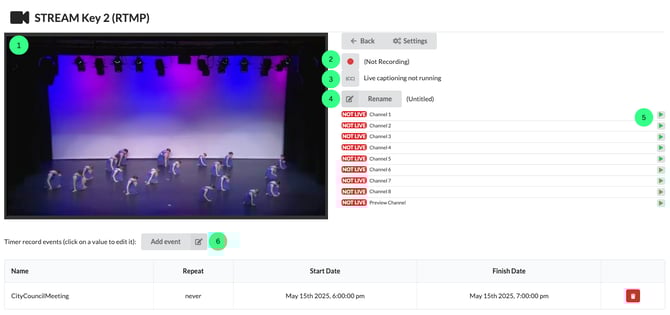
Each CASTUS unit is shipped with the number and type (SDI and/or IP) of inputs purchased. To configure an input, head to the Settings of the input.
On the inputs controls page, the following can be achieved:
- Preview the incoming feed
- Manually go and end live on a channel
- Start and stop closed captioning
- Monitor live closed captioning and live translations
- Start a manual recording
- Manually rename a recording
- Schedule a future recording
- Set up recurring recordings (daily or weekly)
Accessing the Controls Page
- Select Services > Inputs from the CASTUS main menu and select the controls icon.
OR - Select Inputs above your Confidence Monitors and choose the controls icon for your desired input.
The Controls Page
- Preview Monitor: Preview the live incoming feed from the selected input.
- Record Button: Manually start or stop recording; saved recordings appear in the Recordings folder in your Library under the folder with the same name as the input.
- Captions: Start and end live captions for your live input.
- Rename: Change the default file name of your manual recording.
- Go Live & End Live: Manually start or stop broadcasting the input on selected channels.
- Add Event: Set up a timer record to automatically record a future event. Timer records can be one-time events or repeat daily or weekly.