
GETTING STARTED
- Log into your physical server via a monitor, keyboard, and mouse.
- Launch the graphical user interface (GUI) by typing startx and hitting enter.
- Use the icon in the lower left to navigate to the terminal emulator.
NOTE: Alternatively, you can ssh into your system on your local network using your computer's terminal or command line and the following command:
ssh root@LOCAL-IP-ADDRESS
AT THE COMMAND LINE
- Type the following command followed by the enter key:
net-ui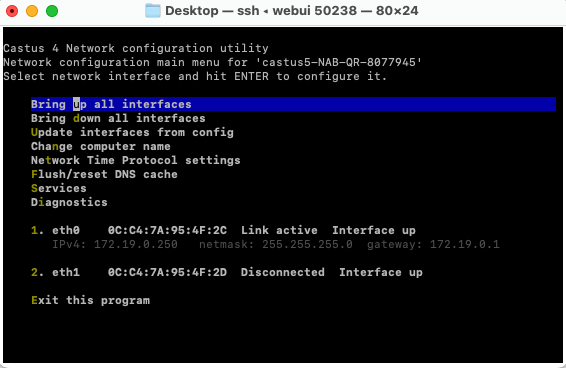
- Your screen will now show you the network settings for your CASTUS. If you have more than one ethernet port on the back of your unit, you'll see two or more possible connections. The connection labeled "Link Active Interface Up" is the one you want to look for.
- Below the numbered line, there will be a gray IPv4 address. This is the current local IP address your CASTUS is using.
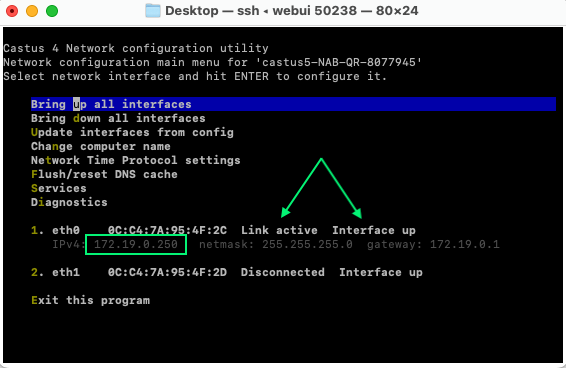
- Enter that IP address into another computer's web browser (Chrome, Firefox, etc.) to access your CASTUS unit on the same internet network.
NOTE: This is not the public IP for your server. If external access is required, please work with your IT department to obtain and route a public IP address.