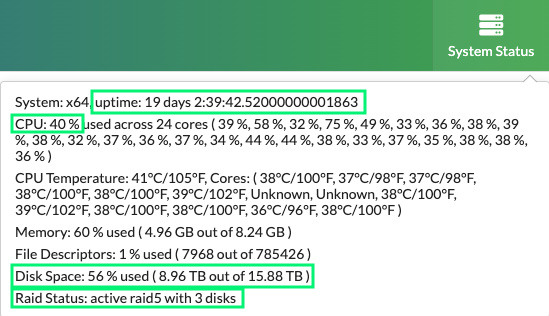
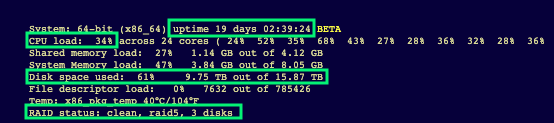
Disk Space - It is generally recommended to maintain 15% to 20% of your disk space as free space to avoid potential errors and system crashes. Allowing your drives to become nearly full can lead to serious issues, such as audio dropouts and stuttering during live broadcasts. To mitigate these problems, regularly monitor your drive space and remove any unnecessary content. In Version 5, you can check your disk usage by clicking on “System Status” located in the top right corner, next to the date and time. For Version 4, simply look at the bottom of the home page. Both versions will provide you with information about your total disk space, the amount currently in use, and the percentage of space that is occupied.
CPU Load - Your CPU load can fluctuate based on the tasks that are currently utilizing it. When you have multiple inputs and outputs running simultaneously while broadcasting live, your CPU usage will be significantly higher compared to when the unit is playing pre-scheduled content without any live events. For context, the CPU load during the playback of pre-recorded scheduled content typically ranges from 15% to 35%, whereas live streaming generally results in a normal load of 30% to 60%. Should your CPU load reach 65% or higher, you may experience issues such as stuttering or dropouts on your channels. If you encounter these problems, please reach out to support for assistance. You can check your current CPU load at any time by accessing the same data mentioned earlier. To help maintain a low CPU usage, consider disabling unnecessary inputs, outputs not assigned to channels, and the preview channel when they are not in use. You can also access the user interface remotely—either from within the same network using a local IP address or from outside the network via a public IP address—and close Firefox running on the on-premise unit to free up resources. In urgent situations, such as experiencing stuttering or dropouts during a live event, you can reduce CPU load by turning off reporting services through the menu path Services > System Services.
Raid Status - In addition to monitoring disk space and CPU load, it's important to check your RAID status, if applicable. Be aware of any failed hard drives, as this can impact your system's performance. If a hard drive fails and is still under warranty, you can arrange for a replacement through CASTUS. For drives that are out of warranty, our support team can assist you in finding a compatible replacement. It's also worth noting that if your RAID drive is in the process of rebuilding—an occasional and normal occurrence—this may temporarily increase your CPU load.
Hardware Restart - The menu mentioned earlier also displays the “uptime,” which indicates how many hours or days your unit has been operating without a restart. To ensure optimal performance, it's advisable to restart your physical unit every one to two months. Like all electronic devices, your unit may benefit from a reset from time to time. To perform a restart, simply press the black rocker switch located beneath the front door of the unit to power it off. After waiting for about a minute, press the rocker switch again to turn the unit back on.
Software Updates - Regular software updates are essential for ensuring that the features you depend on are not only current but also optimized for performance. These updates also include important security enhancements for your system. You can find the latest updates and detailed instructions on how to apply them in the software section of this knowledge base. If you would prefer assistance with the update process, our support team is more than happy to help. Simply contact us at support@castus.tv, providing your support ID and your request for an update.
NOTE: Software updates are only available for customers who have a C4 or C8 support contract with CASTUS. For more information, visit the Overview of the C4 and C8 Support Contracts article.
New or “Save As” Schedules - To prevent potential file corruption over time, we recommend creating a new schedule or utilizing the save as feature at least once a year for your schedule file. These schedule files are crucial for the smooth operation of your channel, and maintaining their integrity is essential for ensuring consistent performance throughout the year.