
WHAT YOU’LL NEED
- A computer (Mac or PC)
- Filezilla Client (free version)
- CASTUS local IP address and root password
- Open access for FTP on your local network
- FTP Service enabled on CASTUS
- Optional but recommended: External Hard Drive
ENABLE FTP ON THE CASTUS SERVER
- In the CASTUS User Interface, select CASTUS on the top left of the screen and choose Services.
- Select the System Services tab.
- Verify that FTP Access is available and turned on.
- If it has a green play icon, it is available and on.
- If it has a red square icon, it is available but turned off. Go to the far right of that item and choose Start.

-
- If it has a gray circle with a slash, it is not available and needs to be enabled.
- To enable FTP access, access your CASTUS via a connected monitor, keyboard, and mouse.
- Open the start menu and select the terminal emulator.
- Type net-ui into the terminal emulator window and press enter.
- Use the arrow keys on your keyboard to select Services and press enter.
- Select Enable FTP service and press enter.
- Use the arrow keys on your keyboard to select Main menu and press enter.
- Use the arrow keys on your keyboard to select Exit this program and press enter.
- Verify FTP is available and turned on via steps 1-3 in this section.
CONNECTING TO CASTUS VIA FTP
- Open FileZilla on your Windows or Mac computer.
- Select File > Site Manager.
- Select New Site.
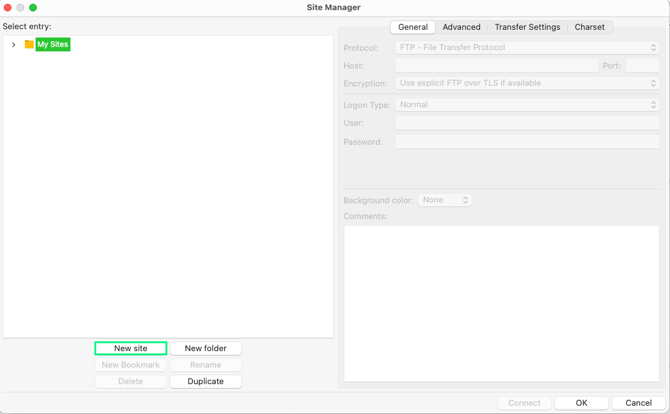
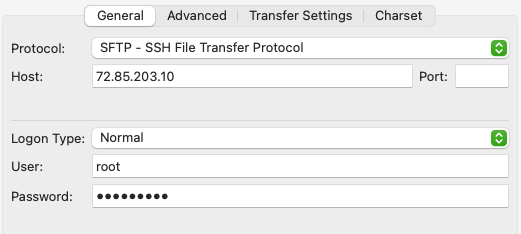
- Enter the following information on the General tab:
- Protocol: SFTP - SSH File Transfer Protocol
- Host: LOCAL_IP_ADDRESS_OF_CASTUS
- Logon Type: Normal OR Ask for Password
- User: root
- Password: PW_FOR_YOUR_CASTUS
- Enter the following information on the Advanced tab:
- Default remote directory: /mnt/main/
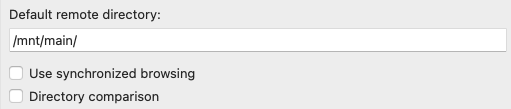
- Default remote directory: /mnt/main/
- Select Connect.
TRANSFERRING CONTENT
- If using an external hard drive (recommended) attach the drive to your Mac or PC computer.
- Open FileZilla and connect to your CASTUS by opening the site manager, choosing CASTUS, and Connect from the previous section.
- The left side of the FileZilla window is your local computer and connected hard drive. The right side is your CASTUS server.
- Double click the directory you want to copy to or from on the right side of the screen.
- On the left, navigate to your connected drive or local computer folder and double click.
- Drag and drop your desired folder(s) or file(s) from to or from each drive as needed.
- The transfer(s) can be monitored in the bottom window.
GENERATING METADATA & APPLYING TEMPLATES
- Content transferred over via FTP to the CASTUS does not automatically generate metadata and will need to have metadata generated for it manually in the CASTUS User Interface.
- Log on to your CASTUS User Interface and locate the new content in your library.
- Select the dropdown to the left of the file name and choose Generate Metadata.
- Edit individual metadata by selecting the dropdown again and choosing Edit Metadata.
- Apply a template by selecting Apply Template at the top and choosing the template you want to use.
- Edit individual fields and save your changes.