
NOTE: If the FTP option is not visible in the Services section, it is possible that you are using an outdated version of the software. We suggest updating to the latest version and then revisiting the steps outlined below.
Checking FTP Service
- In the CASTUS User Interface, select CASTUS on the top left of the screen and choose Services.
- Select the System Services tab.
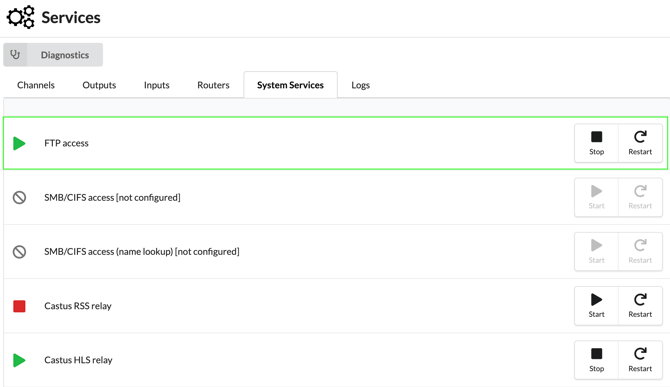
- Verify that FTP Access is available and turned on.
- If it has a green play icon, it is available and on.
- If it has a red square icon, it is available but turned off. Go to the far right of that item and choose Start.
- If it has a gray circle with a slash, it is not available and needs to be
enabled.
Enabling FTP Service
- To enable FTP access, access your CASTUS via a connected monitor, keyboard, and mouse.
- Open the start menu and select the terminal emulator.
- Type net-ui into the terminal emulator window and press enter.
- Use the arrow keys on your keyboard to select Services and press enter.
- Select Enable FTP service and press enter.
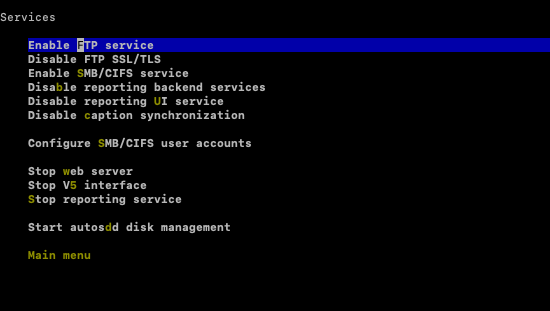
- Use the arrow keys on your keyboard to select Main menu and press enter.
- Use the arrow keys on your keyboard to select Exit this program and press enter.
- Verify FTP is available and turned on via steps 1-3 in the Checking FTP Service section.
NOTE: You have the option to access your device via SSH instead of using a keyboard and mouse. If you choose to use SSH, you can proceed directly to step 3 after successfully logging into your server.