AD Editing Interface
Layout
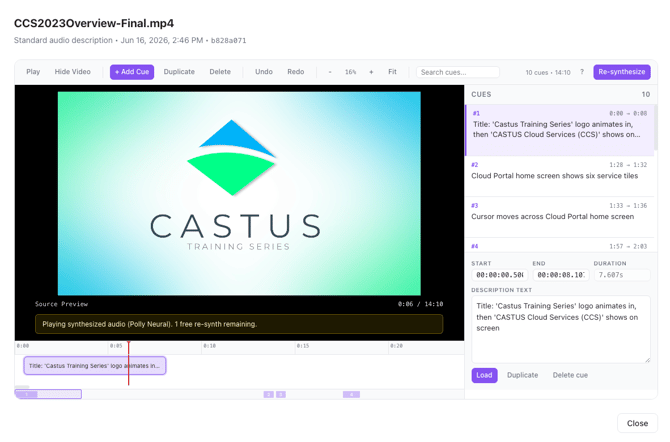
The Toolbar at the top of the screen contains all the tools you need to quickly edit your Audio Descriptions. See the section below for a detailed overview of each tool.

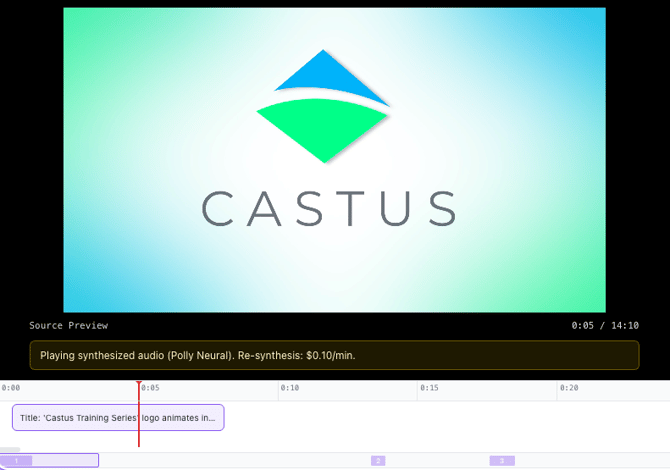
The Preview Window in the center of the screen lets you watch your video and listen to the Audio Descriptions as you edit.
Below the Preview Window is the Timeline, which displays the full duration of your video along with each cue. Click and drag a cue to reposition it within the timeline.
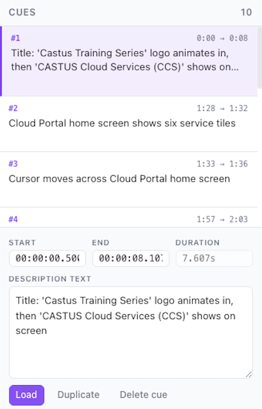
On the right side of the screen, you'll find all of the generated Cues, with the Cue Editor located at the bottom. Select a cue to move the playhead to its location and begin editing. Use the Cue Editor to modify the cue text, adjust its timing, duplicate it, or delete it.
Tool Bar
Play – Play or pause your video. You can also press the Spacebar to play and pause.
Hide Video – Hide the video and listen to the audio only.
+ Add Cue – Insert a new cue at the current playhead position.
Duplicate – Create a copy of the currently selected cue.
Delete – Remove the currently selected cue.
Undo – Reverse your most recent action(s).
Redo – Restore the most recently undone action(s).
Zoom – Zoom in or out on the timeline for more precise editing.
Fit – Adjust the timeline view so the entire video fits within the available window.
Search Cues – Search your cues by keyword to quickly find and edit specific descriptions.
? - Click the question mark to see the keyboard shortcuts for the VideoYo interface.
Re-synthesize – After reviewing and editing your cues, click Re-synthesize to generate a new Audio Description track using your changes. You can re-synthesize the Audio Description track up to two times per video.
Editing a Cue
-
Select a cue in the cue list or the timeline to select a cue.
- Navigate below the cue list to the cue editor to edit a cue's contents.
- Select Load to apply your change and preview your cue.
Re-synthesizing a Video
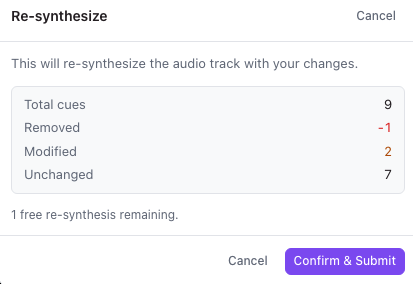
After you have finished reviewing your cues, you must Re-synthesize if you have added, deleted, or modified any cues. Re-synthesizing generates a new Audio Description track that includes your changes.
To begin, click Re-synthesize in the top-right corner of the screen and confirm your changes.