
Why would I want to make a copy of my schedule file?
- Backup: Creating a backup of your schedule file is always a smart practice. Regularly saving a copy can safeguard against accidental errors and ensure that your important information is protected.
- New File: CASTUS advises that you create a new schedule file annually to prevent potential corruption. Older schedule files are more susceptible to issues that could disrupt on-air operations. By regularly updating your schedule file, you can help minimize the risk of these problems and maintain smooth broadcasting.
- Rename Your Schedule: Modifying the name of an active schedule can lead to on-air disruptions. Therefore, the recommended approach is to create a duplicate of the schedule under the new name and then assign this updated schedule to your channel.
- Drastic Changes: Keeping a backup of your schedule during significant changes for holidays or special events allows you to quickly revert to your regular programming, ensuring a seamless transition back to your standard operations.
Making a Copy of the Schedule File
- Open your current schedule file.
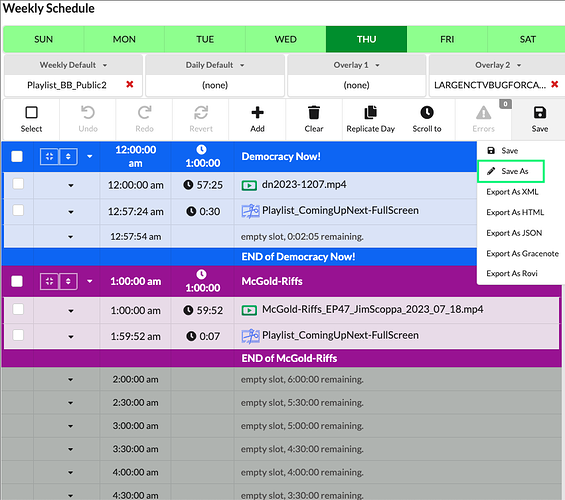
- Select the Save icon and choose Save As.
-
Give your schedule a new name that distinguishes it from the current version, such as incorporating the upcoming year for clarity.
Assign New Schedule to Channel
-
Choose the confidence monitor for your desired channel from the left panel.
-
Navigate to the Schedules folder within the library.
-
Next to the new schedule file, select the dropdown and choose Assign to Channel #
NOTE: Assigning a schedule file to the channel is more advantageous than using the Play Item Now or Play Item Next options because it is a persistent setting. This means that if your channel or server undergoes a restart, it will resume with the assigned schedule, rather than reverting to items that were temporarily played.