
Are you interested in broadcasting your live content to YouTube, Facebook, or Twitch? Follow the steps outlined below to set up your IP Output for RTMP streaming to your preferred social media platform.
WHAT YOU NEED
- Key (sometimes called stream key) information for your social media site (URLs are below).
CONFIGURE CASTUS IP OUTPUT
- Log in to your QuickRoll or QuickCast unit.
- Select the CASTUS Main Menu in the upper left and choose Services.
- Locate the desired IP Output and select the Settings icon located on the far right.
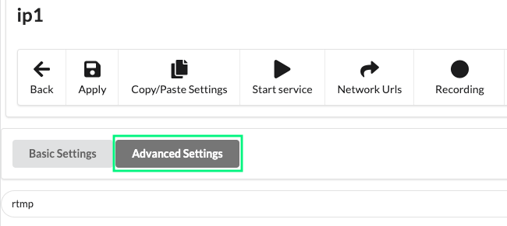
- Select Advanced Settings and search for RTMP.
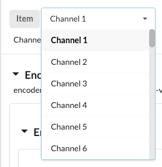
- Choose the dropdown next to Item and select the feed you want to send from the list.
- Select the drop down for Enc, then Enc1, and Ts.
- Select the radio button next to Enable RTMP Push if it isn’t already enabled.
- The RTMP Push URL field will be one of the following depending on which service you want to stream to. Copy and paste the URL only:
- YouTube: rtmp://a.rtmp.youtube.com/live2
- Facebook: rtmps://live-api-s.facebook.com:443/rtmp/
- Twitch: rtmp://live.twitch.tv/app/
- From your social media site, copy the Stream Key and paste into your QuickRoll or QuickCast in the RTMP Push Key field.
- Copy the below settings:
driver=internet_mpeg
audio_rate=44100
enc/0/audio/bitrate=128000
enc/0/audio/encoder=aac
enc/0/ts/rtmp_push_enable=1
enc/0/video/b_frames=2
enc/0/video/bitrate=2500000
enc/0/video/closed_gop=1
enc/0/video/encoder=h.264
enc/0/video/frame_rate_limit=30
enc/0/video/gop_size=15
enc/0/video/resize_deinterlace=3
enc/0/video/resize=1280x720
- Select Copy/Paste Settings and paste the settings on the right side of the screen.
- Select Apply.
- Return to the Services page and turn on your output by pressing Start.
- Within a few minutes, you should see your feed appear on your streaming site.
NOTE: Your streaming platform may require an additional 'Go Live' step. Please refer to your social media site for specific instructions or prompts.
TIP: To stream in 1080 HD, omit the last line and change the bitrate from 250000 to 300000. Streaming in 1080 will take more resources from your server and slightly improve the video quality.
RENAME IP OUTPUT
To rename your IP Output for a specific service, follow the instructions below:
- Head to CASTUS > Services > Outputs.
- If your output is running, stop your output.
- Choose the Rename option on the right for that output.
- Enter the new name of the output and select Submit to save the changes.
- If you want to use the output right away, Start your output. Otherwise leave it off until needed next.
ALTERNATIVE OPTIONS
If you subscribe to the CASTUS Cloud Services (CCS) for Live Streaming, you also have the cloud restream option available to you for Facebook and YouTube. This will restream from the CASTUS Cloud instead of from your server.