The confidence monitors for your channel(s) offer more functionality than just overseeing your video and audio. Under each channel, you can view what is assigned to your channel and what is currently playing (even if it’s part of a Simple Playlist or CASTUS Cuts project).
To quickly access what is assigned or currently playing on your channels, simply click on the text of the item(s).
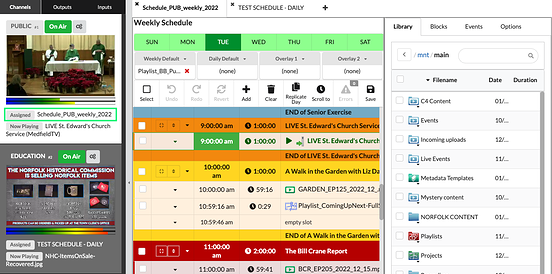
Selecting a schedule will open it in the schedule editor.
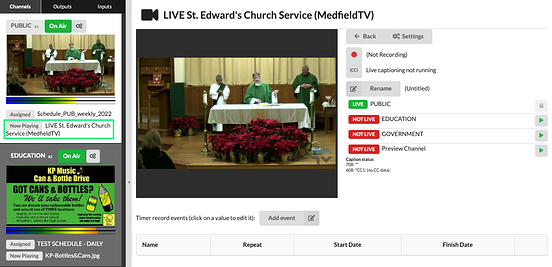
Choosing a live input will bring up the input controls.
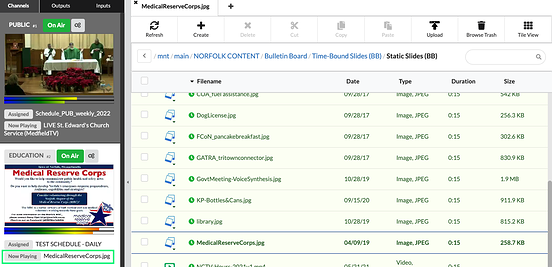
Selecting any type of file will open the Library folder containing that file.
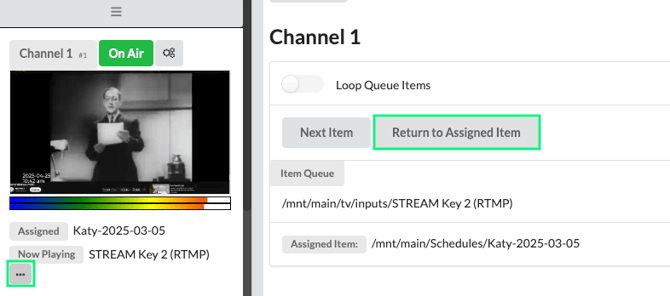
If you see a three-dot ellipsis icon, it indicates that your scheduled content is being overridden—either by a manual live event or by using the "Play Now" feature. Click the ellipsis to access the option to return to your scheduled programming.