
- Access the physical CASTUS unit via monitor, keyboard, and mouse.
- When you see the initial power-up screen, which appears as a black background with white text, enter the username root followed by your unit's password. If you need the default password shipped with your unit, email support@castus.tv or call 800-215-3880 for assistance.
- Once you are logged in, type the command
startxand press ENTER to launch the graphical windowing environment. - Click on the CASTUS Start Menu icon in the bottom left corner of the screen.
- Choose Terminal Emulator from the menu.
- In the terminal window, type
net-uiand press ENTER to see editing options as well as the status of the two ethernet ports at the bottom.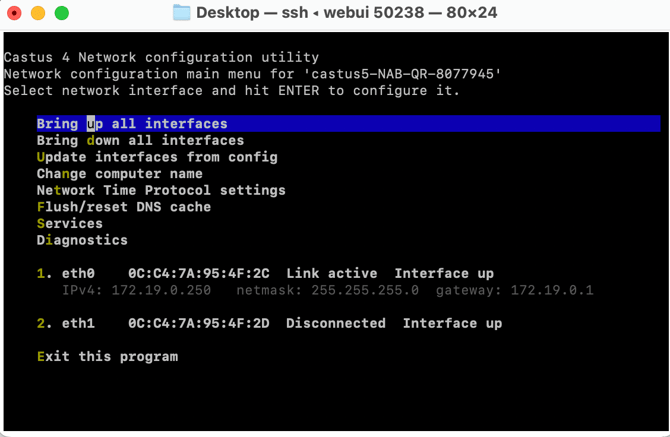
- To view/edit a port, use your arrow keys to highlight the desired port and press ENTER.
- Use your arrow keys to select edit configuration and press ENTER to change settings.
- To make changes, you use your arrow keys to select the item of interest and press ENTER.
- For the DNS, you can enter up to 2 addresses separated by a space.
- When you are done editing, use your arrow keys to select save changes and press ENTER.
- Now select update interface from config to activate the changes.
- Use your arrow keys to select main menu and press ENTER.
- Use your arrow keys to select exit and press ENTER to leave the program.
- When finished, leave the terminal by typing exit and pressing ENTER.
NOTE: If you are using more than one Ethernet port, then there should only be one gateway.
NOTE: If you already know the IP address of your server, you can ssh into the server on the same network by using the command ssh root@SERVER-IP from your separate computer.