QUICKROLL/QUICKCAST
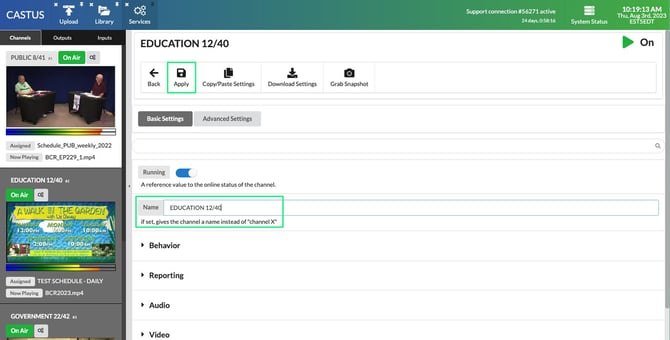
The instructions below change the channel name on your confidence monitors as well as in your input controls.- Log in to your server and head to CASTUS > Services.
- On the channel you want to change, select Settings.
- Modify the Name parameter.
- Select Apply at the top of your screen.
NOTE: If you rename an input, you’ll need to relink it for any scheduled live streams or CASTUS Cuts projects that use it, and the system will create a new folder when you make your first recording with the updated name.
CASTUS CLOUD SERVICES (CCS) LIVE STREAM
If your thumbnail also has the channel number in it, don’t forget to update that as well!
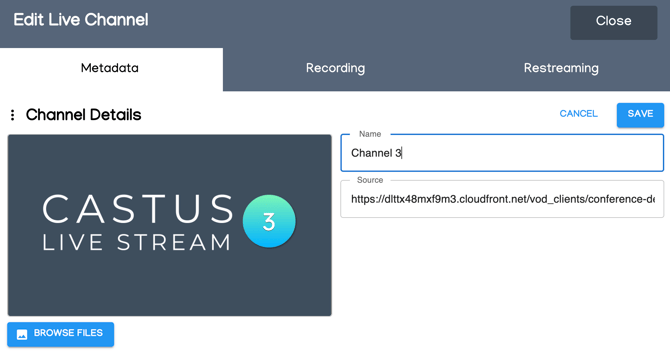
- Navigate to the CCS cloud portal and choose Channels > Live Channels.
- Select the pencil icon to the right of the channel you want to change.
- Edit the name field.
- Select Save.
CASTUS HOSTING SERVICES (CHS) LEGACY VOD (QUICKSTREAM)
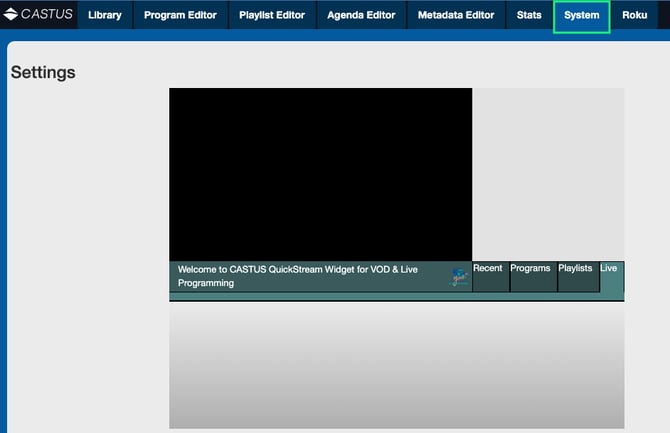
- Once logged in to your admin portal, go to the System tab up top.
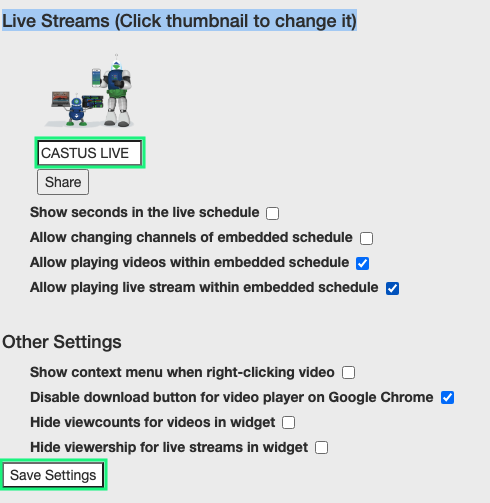
- Once in System tab, scroll down to Live Streams (Click thumbnail to change it).
- Below you will see the live stream channels listed. You can select each title to modify it.
- Select Save Settings below.