CREATING PLAYLISTS
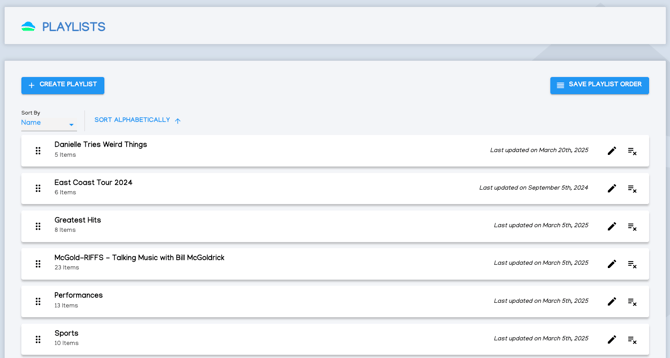
- Navigate to the Playlist section within the CASTUS Cloud Portal by selecting it from the main menu under the On Demand category
- Select + Create Playlist.
- A new playlist named New Playlist will be created.
ADDING CONTENT TO PLAYLISTS
- Click on the pen icon to edit the playlist.
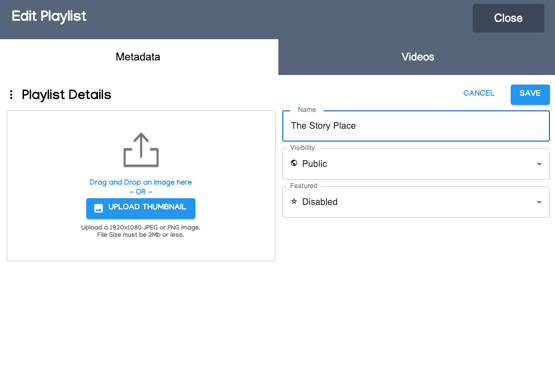
- Rename the playlist, change the visibility, feature the playlist, or upload a custom thumbnail by selecting the Metadata tab.
- Select the Videos tab to edit the contents of the playlist.
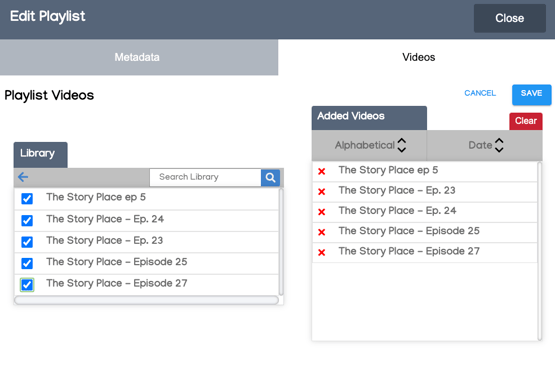
- The video library will show up on the left, and the playlist on the right.
- To add a video to the playlist, simply click on the video name on the left and it will populate on the right under the playlist title.
- To remove a video from the playlist, simply click on the video name in the playlist or the library window.
- To reorder videos in a playlist, select Alphabetical or Date to sort. You can also click and drag the video names up or down to reorder manually.
- Select Save to save your changes and return to the playlist window.