To edit any information or properties of your video, select the pen icon to the right of the video name or right click on the video and choose Edit File Details.
Metadata
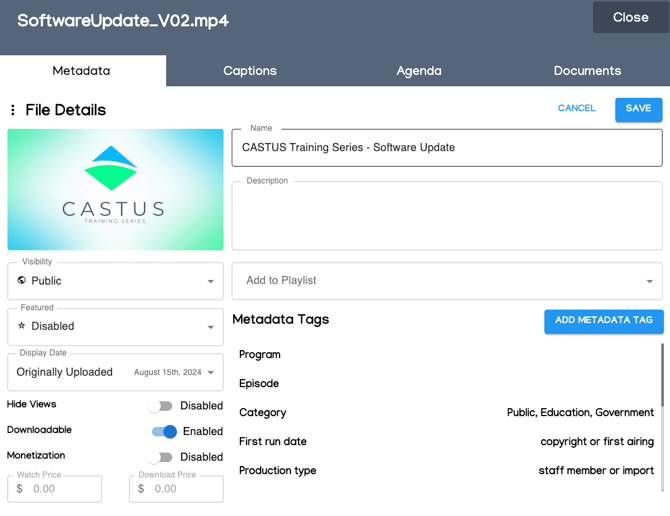
- To change the name or description of your video, click into the proper fields and begin typing.
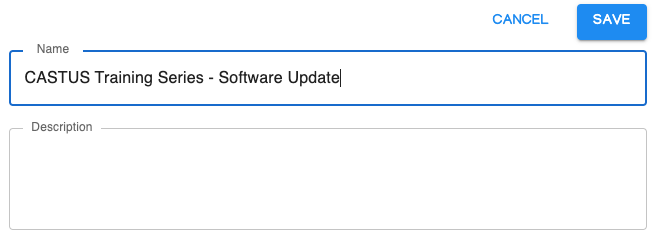
- Choose Save above and to the right to save your changes.
- Select the three dot menu to the left of File Details to download your thumbnail or video file.
- A thumbnail will be generated for all uploaded videos. Upload a custom thumbnail or have the cloud generate 4 thumbnail options for you by selecting the thumbnail image.
- In this window, you can upload a custom thumbnail on the left or choose from the 4 generated thumbnails on the right. The recommended graphic size is 1280 x 800.
- Select Confirm to save your changes.
- Select ← File Details to head back to the main file details page.
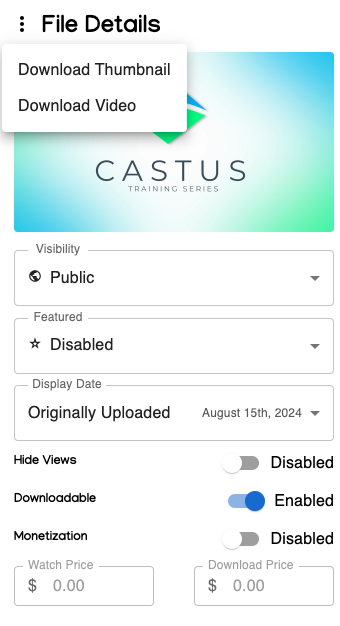
- Set your video to visible, hidden, or schedule a premiere date by selecting your preferred option from the Visibility dropdown.
- Feature your video by choosing the Featured dropdown and selecting Enabled.
- Choose to show the original or last edited date for your file by choosing your preferred Display Date in the dropdown.
- Enable or disable view counts publicly by changing the Hide Views toggle. NOTE: This can also be set globally in Settings. If set globally, it will supersede your local video setting.
- Choose whether your video is downloadable or not by toggling Downloadable on or off. NOTE: This can also be set globally in Settings. If set globally, it will supersede your local video setting.
- Set prices for your content to watch or download via the below menu. Toggle the option on or off to enable or disable the Monetization feature. Note: Global downloading of free videos can be selected in the Settings menu.
- Metadata can be added to a video as well to assist with searching both on the back end and public page of your cloud portal. Metadata tags are brought over with your video if you’re sending from your QuickRoll or QuickCast, or can be manually added here by selecting Add Metadata Tag.
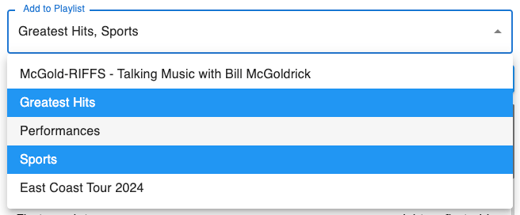
- Adding content to playlists is quick and easy. Simply select the drop down for Add to Playlist and choose the playlist(s) you want to add your video to. Save your changes. The video will be added to the top of the playlist but will not be added again if it is already in the playlist. Head to the Playlist section to modify the order of the videos in a playlist.
Captions
- To generate or upload captions, exit the caption tab and select the caption button for your video in the library. Choose to caption the video or to upload .vtt captions here. If the file was captioned live and has embedded or sidecar captions before sending to VOD, your captions will pass through to VOD and you do not need to generate additional captions.
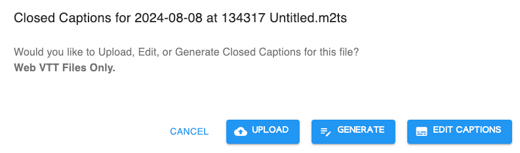
- To edit your captioned video, select Edit Captions or seek to the caption tab in the file editor.
- Use the play button to play your video with audio or click and drag in the timeline to scrub through your video.
- Select a caption and start deleting or typing to edit a caption.
- Choose the check icon in the middle of the page to save your changes.
- Add an additional caption line by selecting the plus icon and typing in the box that appears on the right.
- Download your caption file by selecting Download Captions in the middle of the page.
Agendas
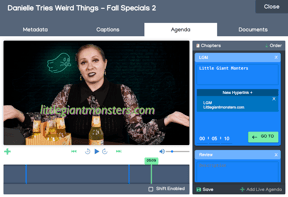
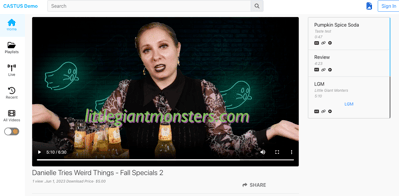
- Adding chapters to a video adds clickable shortcuts to different sections of your video.
- Use the play button to play your video with audio or click and drag in the timeline to scrub through your video. Choose the plus icon to add an agenda point.
- Edit the title and description of your chapter and choose New Hyperlink + to add a hyperlink to your agenda item.
- Choose save on the bottom of the chapter list to save your changes.
- To add a previously created live index, select Add Live Agenda and choose your agenda from the list.
NOTE: When you add a new chapter point, it will appear at the top of the list for easy access and editing. When saved and on the public site, the chapter points will show in order from beginning to end.
Documents
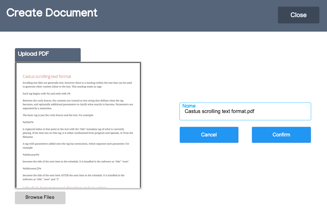
Documents can display alongside your video and on the public page, users can switch between the index and the document for a video. Documents must be PDF format.
- To add a document to your portal, head to On Demand > Documents.
- Select Browse Files and choose the desired file.
- Name your document on the right and select Confirm.
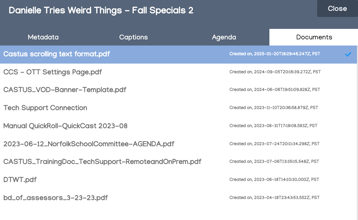
- Return to the edit window for the desired video and select the Documents tab.
- Select the document to associate it with the video. There should now be a blue check mark to the right of the selected document.