
Copying Files
- Plug your flash drive or hard drive into the USB slot in the front of the CASTUS unit.
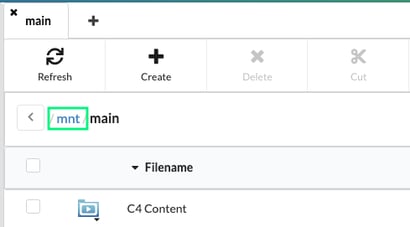
- Regardless of whether you are using the physical CASTUS unit or accessing it through another interface, go to the CASTUS Main Menu, select Library, and then click on mnt to access the mount folder.
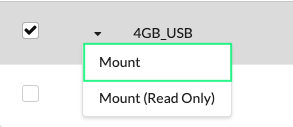
- You will now see the name of your hard drive listed. Click on the action dropdown menu next to the drive's name and select the option labeled mount.
- Double-click on your drive to view its contents and choose the files you wish to transfer to your CASTUS unit.
- Once you have selected the files, click Copy located at the top of the page.
- Then, navigate to the desired folder within your CASTUS where you want to place the files and click Paste at the top of the page to complete the transfer.
Generating Metadata
Once the copying process is complete, it's essential to generate metadata for your files on the CASTUS system.
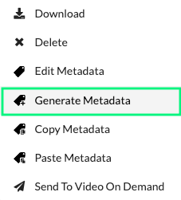
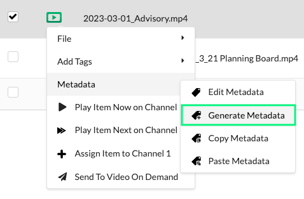
- Select some or all of the files you just copied and click on the action dropdown menu located to the left of the file names.
- From the options presented, choose Metadata > Generate Metadata. This action will create the fundamental metadata required by CASTUS to effectively play your files.In older software versions, this option is available in the main menu, whereas in newer versions, it is organized within a nested menu structure.
Using Metadata Templates
- To add a metadata template to your new files, click the action dropdown for the file and choose Metadata > Edit Metadata.
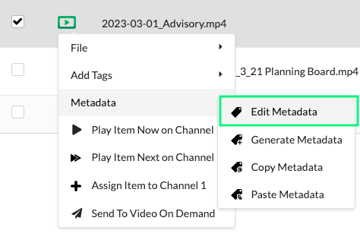
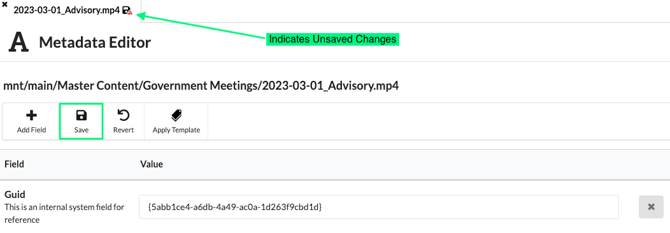
- Select Apply Template above the metadata and select the template of your choice.
- Choose Submit to apply the template to the selected file.
- Fill out the remaining metadata details and choose Save.
Unmounting the Drive
When you are finished with your external hard drive, it is VERY important that you properly unmount the drive before removing it from your CASTUS unit.
- Navigate to CASTUS > Library and click on mnt to open the mount folder.
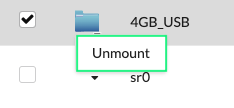
- Select the action dropdown to the left of the hard drive name and choose unmount.
- You can now safely disconnect your external drive.
WARNING: Failing to properly unmount the drive before removing it from the CASTUS unit can lead to the server not recognizing the drive upon subsequent connections. This may require assistance from Support to resolve the issue. If you encounter this situation, please contact support@castus.tv and include your tech support number for prompt assistance.