
Preparing Your Media
- Upload your overlay content OR
- Create a text crawl in Scrolling Text.
- Open Scrolling Text by navigating to CASTUS > Scrolling Text
- Type your text in the white box on the left.
- Change parameters for your text on the right.
NOTE: To change the text from scrolling to static, choose “static, not moving” for the scroll speed item.
Add Main Content
- Open CASTUS Cuts by navigating to CASTUS > CASTUS Cuts
- Add your main media to your timeline by selecting the item from the library widget on the right and then hovering over the white area next to Add Frame before clicking to stick your media into the project.
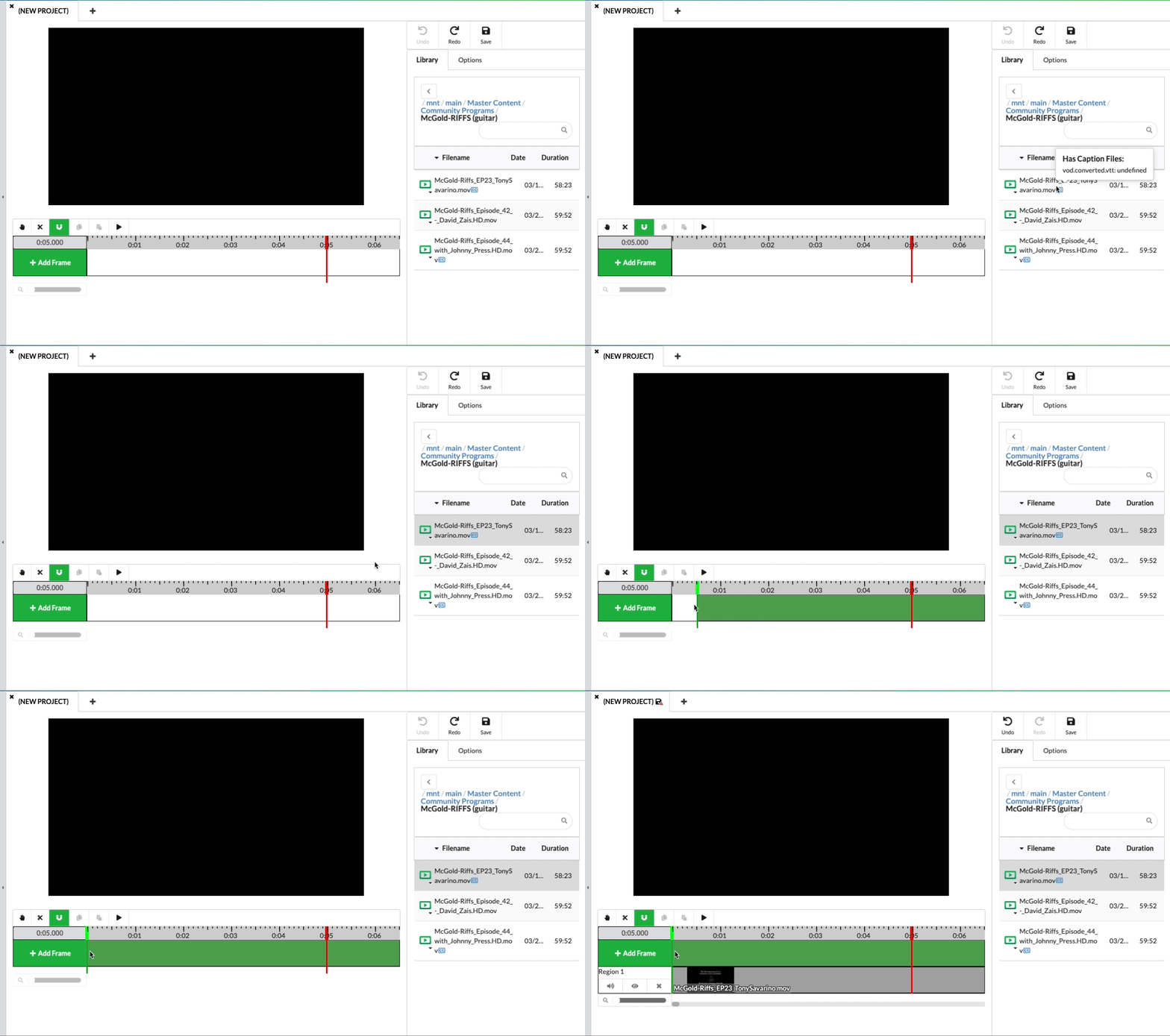
NOTE: Use the magnifying glass to control how much of your timeline you’re seeing. This is especially helpful with long content!
Add & Position an Overlay
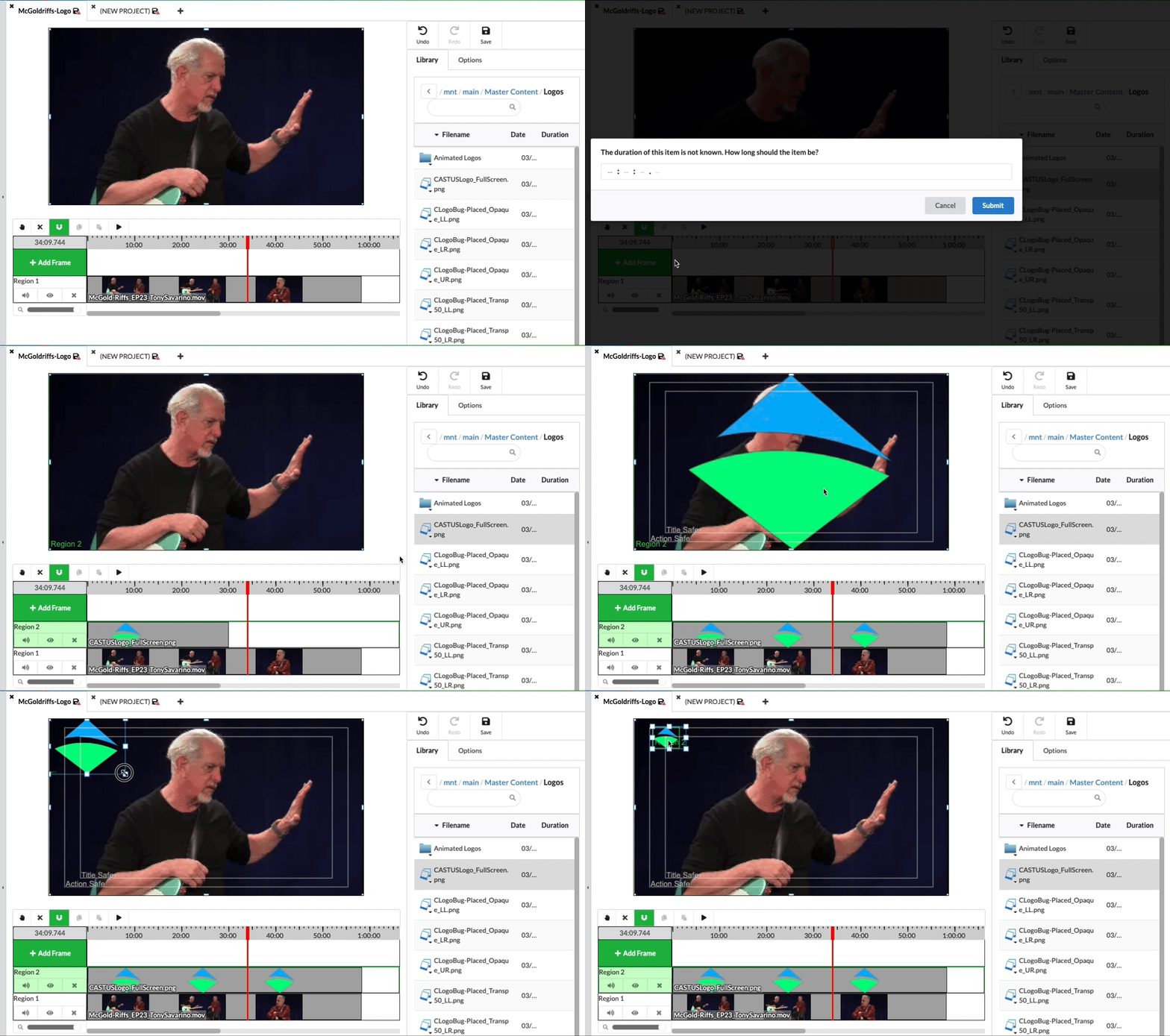
- Find your overlay in the library widget on the right hand side and Click and Stick your media next to Add Frame, which will create an additional region.
- If your media does not have a set duration, CASTUS will prompt you to enter one.
- You can always adjust the duration by dragging the end of the media clip or by cutting and deleting a section as well, so you don’t have to be exact!
- Set the size and position of your overlay by grabbing the bounding box in the preview window above the timeline.
Save & Schedule
- Don’t forget to save your project!
- You can schedule your project right in your schedule without having to render anything. CASTUS Cuts projects default to save to the Projects folder in your main directory.